3. Finding your way around
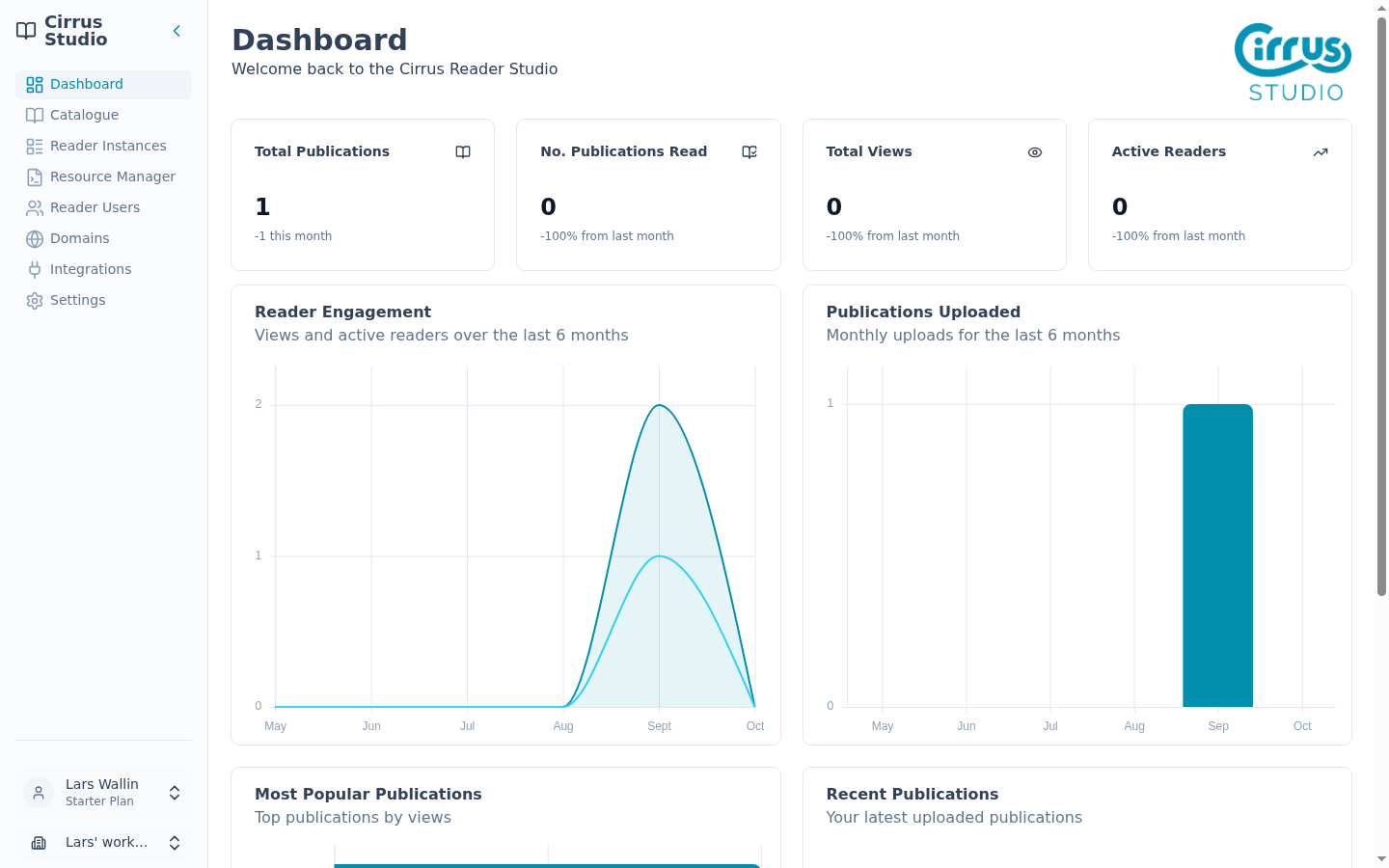
The menu (sidebar)
The menu on the left is always visible. It contains:
| Menu item | Content/function |
|---|---|
| Dashboard | See a summary of activity in your workspace. |
| Catalogue | Upload and manage publications and collections. |
| Reader Instances | Design readers and get their embed code. |
| Resource Manager | Upload fonts, logos, images and icons; manage custom metadata fields. |
| Reader Users | See who has been reading what and their progress |
| Domains | Lists the websites that may show your readers. |
| Integrations | Create API keys and connect other services. |
| Settings | Manage your profile, team, subscription and usage. |
Tip: To make more room on screen, click the ‹ arrow next to "Cirrus Reader Studio" at the top. The menu shrinks to icons only; hover over an icon to see its name. Click the ☰ button at the top of the narrow menu to expand it again.
The account menu
At the bottom of the menu is a button with your name and your plan (for example, "Starter Plan"). During a trial it shows the number of days left, and if the workspace has no plan, it shows "No active plan". Click it to open the account menu:
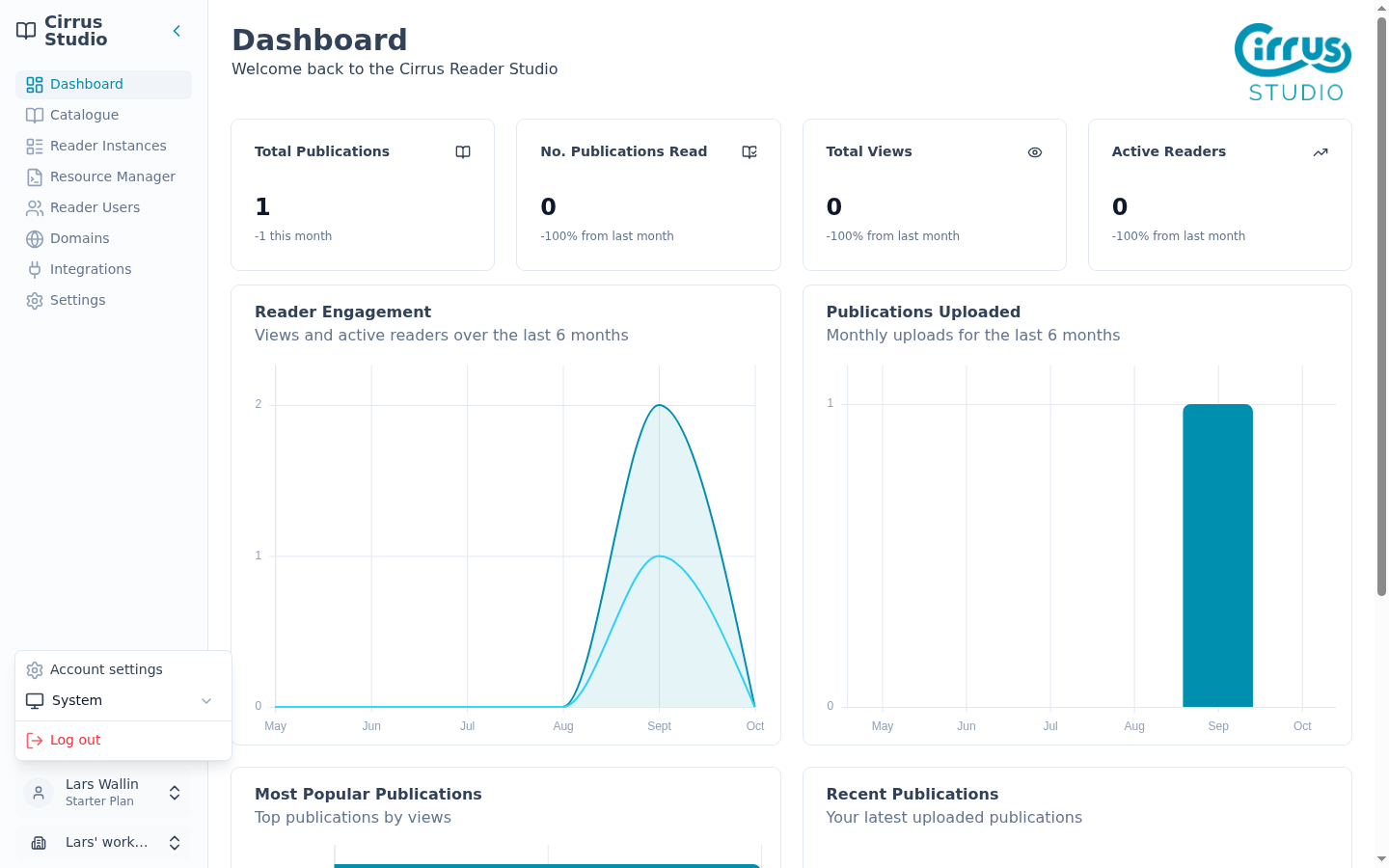
- Account settings: opens your profile. See Account.
- A colour-mode setting, showing the current mode: choose Light, Dark or System (follow your computer's setting).
- Log out: signs you out of Cirrus Reader Studio on all your devices.
The workspace switcher
Below the account button is the workspace switcher, which shows the name of the current workspace. Click it to see all the workspaces you belong to. Your own workspace is marked (Personal) and the current one has a tick.
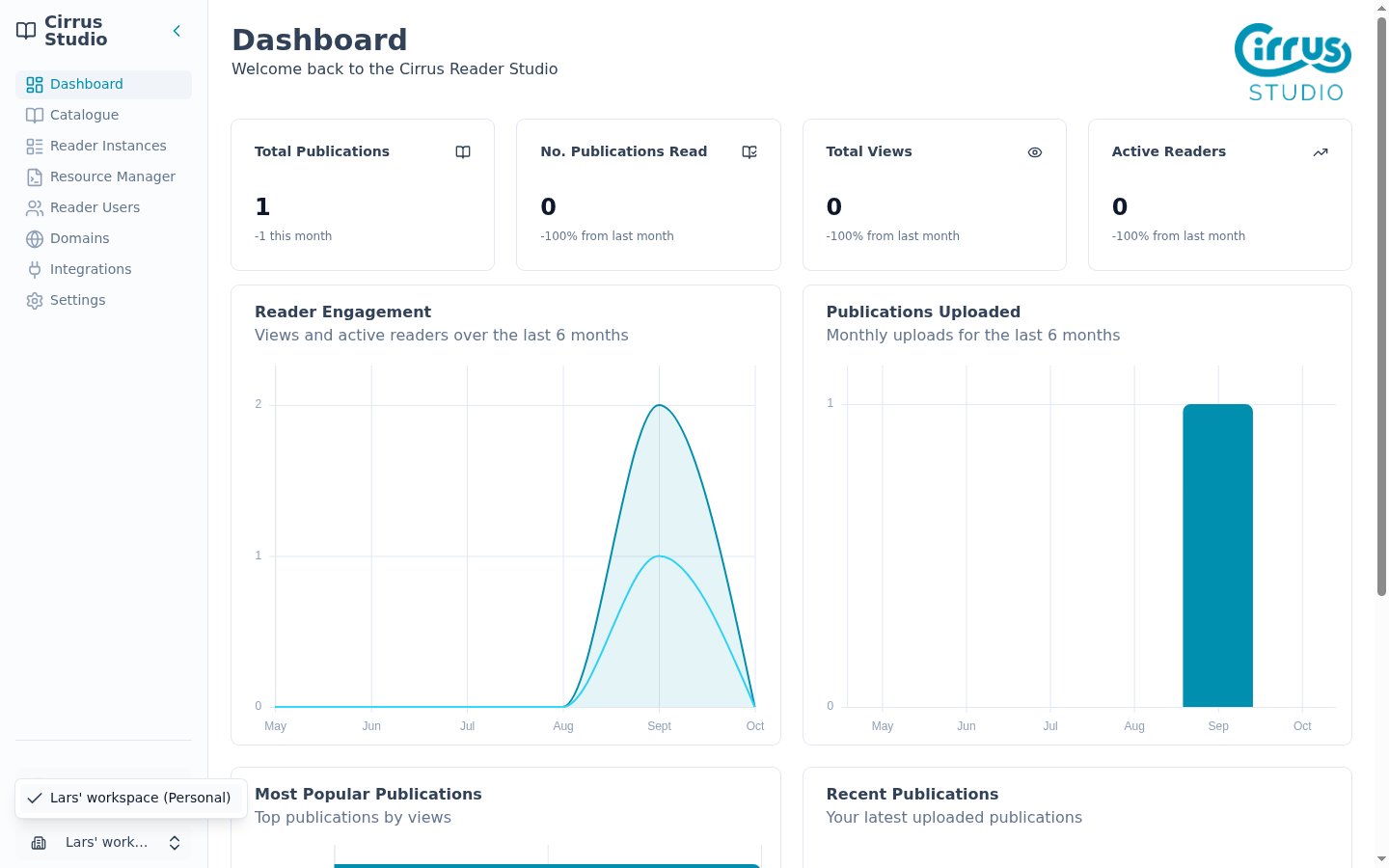
Choose another workspace to switch to it. Cirrus Reader Studio reloads and opens that workspace's Dashboard. If it cannot switch, you see "Unable to switch workspace"; try again.
The Properties panel
On several pages (Catalogue, Resource Manager, Reader Users, Domains), clicking a row in a list opens a Properties panel on the right with more detail and more actions. You can drag its edge to make it wider or narrower. Close it with the ✕ in its top corner.
Row menus (⋮)
Most lists have a ⋮ button at the end of each row. Click it to see additional options for that item, such as edit, copy, download or delete it.
Dialogs and confirmations
- Forms such as "Add new Publication" open in a box over the page (a dialog). Close a dialog with Cancel, the ✕ in its corner or the Esc key.
- Before anything is deleted, Cirrus Reader Studio usually asks you to confirm with Yes or No. Choosing No shows "Deletion cancelled".
Notifications
Short messages, for example, "Copied" or an error, will appear briefly in the bottom-right corner. If you use a keyboard or screen reader, press F8 to jump to them.
Saving your changes
Most forms save when you click their save button (for example Save Changes or Save Reader). The publication Properties panel works a little differently however: some changes wait until you click Save Publication Data. See How saving works in the Properties panel.
Note that on other pages, such as the Reader Instance editor and the Settings forms, do not warn you: if you leave the page before clicking the save button, your changes are lost.
Using Cirrus Reader Studio on a phone or tablet
On narrow screens (smaller than a typical laptop), the menu will be hidden. Tap the ☰ button at the top-left of the page to open it, and the ✕ to close it. The Properties panel opens as a drawer from the edge of the screen. Wide tables can be scrolled sideways. On a phone, scroll the Catalogue table to the right to reach the ⋮ column.