8. Catalogue: collections
Collections let you group publications, for example, by series, season or audience. Open Catalogue and click the Collections tab.
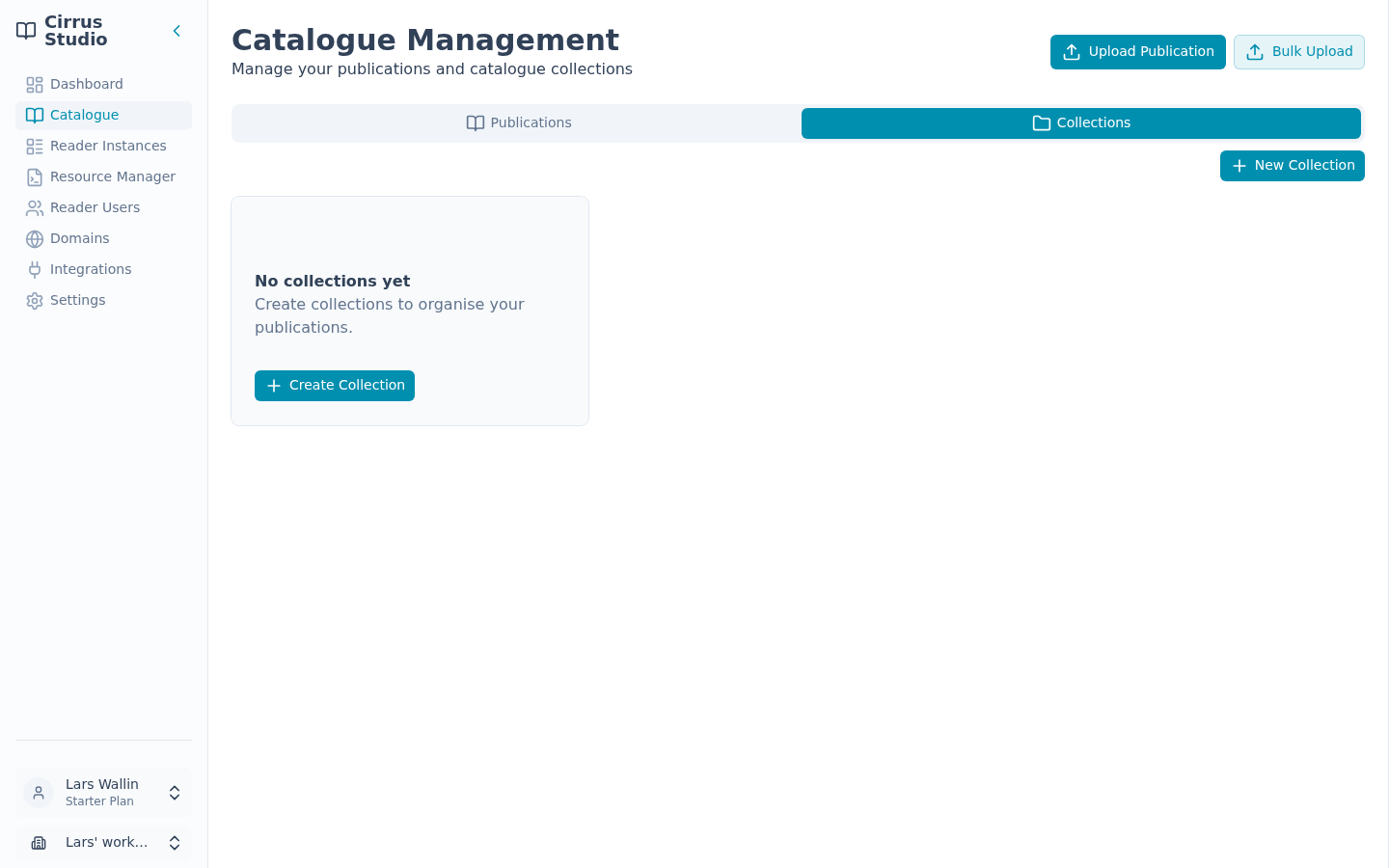
Tip: If a publication's Properties panel is open, your first click on the Collections tab closes the panel. Click the tab again to switch.
Each collection appears as a card showing its name, description and the number of publications in it.
8.1 Create a collection
- On the Collections tab, click New Collection (or Create Collection if you don’t have any yet).
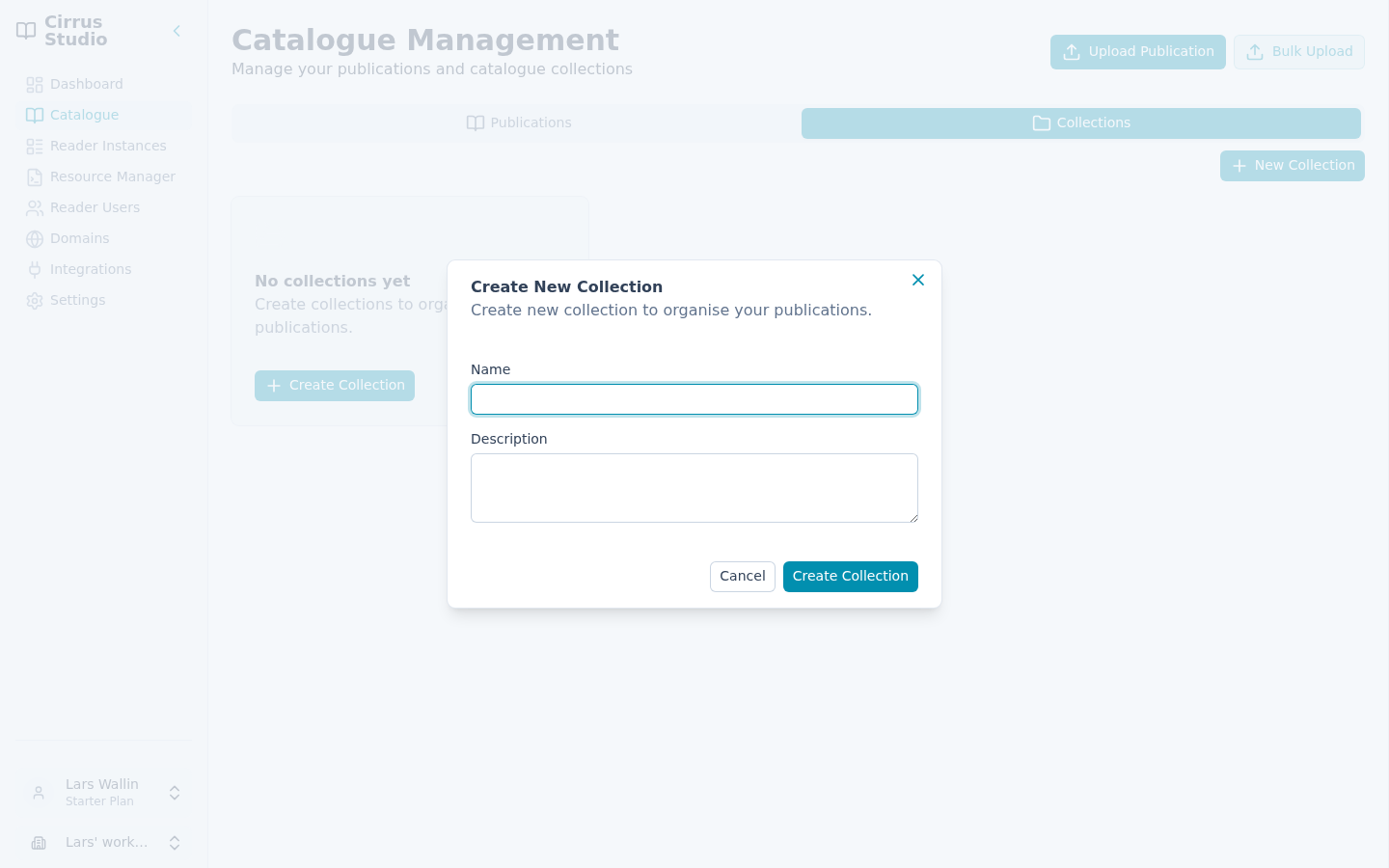
- Enter a Name and Description (optional)
- Click Create Collection.
8.2 Add publications to collections
While uploading: choose collections in the Collection field of the upload form.
For publications already in the catalogue:
- On the Publications tab, tick the box at the start of each publication you want to change.
- Click Assign Collection above the list.
- Tick the collections these publications should belong to, and untick any they should not.
- Click Save.
Important: Assign Collection replaces the collections of every selected publication. It does not add to them.
- The list starts with every collection that any selected publication is already in.
- Any collection you leave unticked is removed from all the selected publications.
To add one collection without losing the others, change one publication at a time, or select only publications that are already in exactly the same collections.
From inside a collection: open the collection (see below) and click Upload Publication. The new publication is put in that collection automatically.
8.3 Open a collection
Click a collection's card, or choose Manage Books from its ⋮ menu. The collection page shows its name, description and number of publications, followed by a list of its publications that works just like the main publication list. Click the back arrow to return.
Note: Bulk Upload and drag and drop are not available on a collection page. Use the main Publications tab and then assign the collection.
8.4 Edit or delete a collection
Open the collection card's ⋮ menu:
- Edit Collection: change the name or description.
- Delete: remove the collection after you confirm "Are you sure you want to delete this collection?". The publications in it are not deleted; they simply no longer belong to that collection.