10. Putting a Reader Instance on your website
To show a Reader Instance on your website, you give your web team a short piece of code, the embed code. This chapter explains how to get it and what to give them. You do not need to understand the code yourself.
10.1 Before you start
Check these three things first:
- Your website is a permitted domain of the Reader Instance. See Domains and the Permitted Domains setting in Create or edit an instance. If your site is not on the list, the Reader Embed will not appear there. If the list is empty, any website can show it.
- The publication is Live, and you know its Publication ID (⋮ → Copy Publication Id in the Catalogue).
- If the instance uses Pre Authentication, you have an API key ready for your web team.
10.2 Open the Embed dialog
- Go to Reader Instances.
- Open the ⋮ menu of the instance you want and choose Embed. (You can also click Generate Embed Code straight after creating a new instance.)
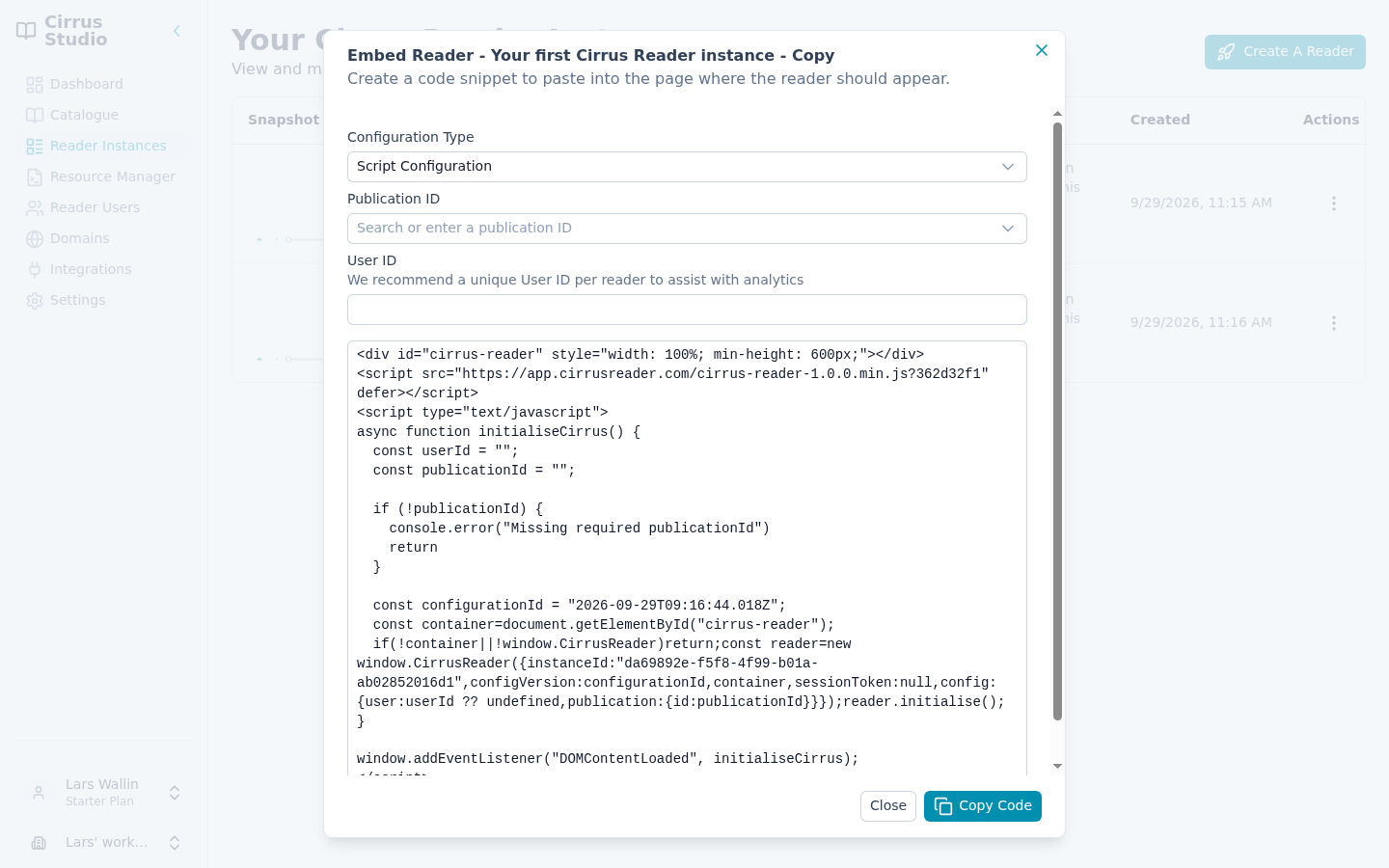
The Embed Reader dialog opens.
10.3 Choose how the publication is picked
The Configuration Type decides how the Reader Embed knows which publication to show.
Script Configuration (the default). Use this when a page always shows the same publication.
- Publication ID: search for the publication by name, or paste its ID.
- User ID: optional. A unique identifier for the person reading, such as their customer number. "We recommend a unique User ID per reader to assist with analytics." Your web team will usually fill this in automatically for each visitor, so you can leave it empty here.
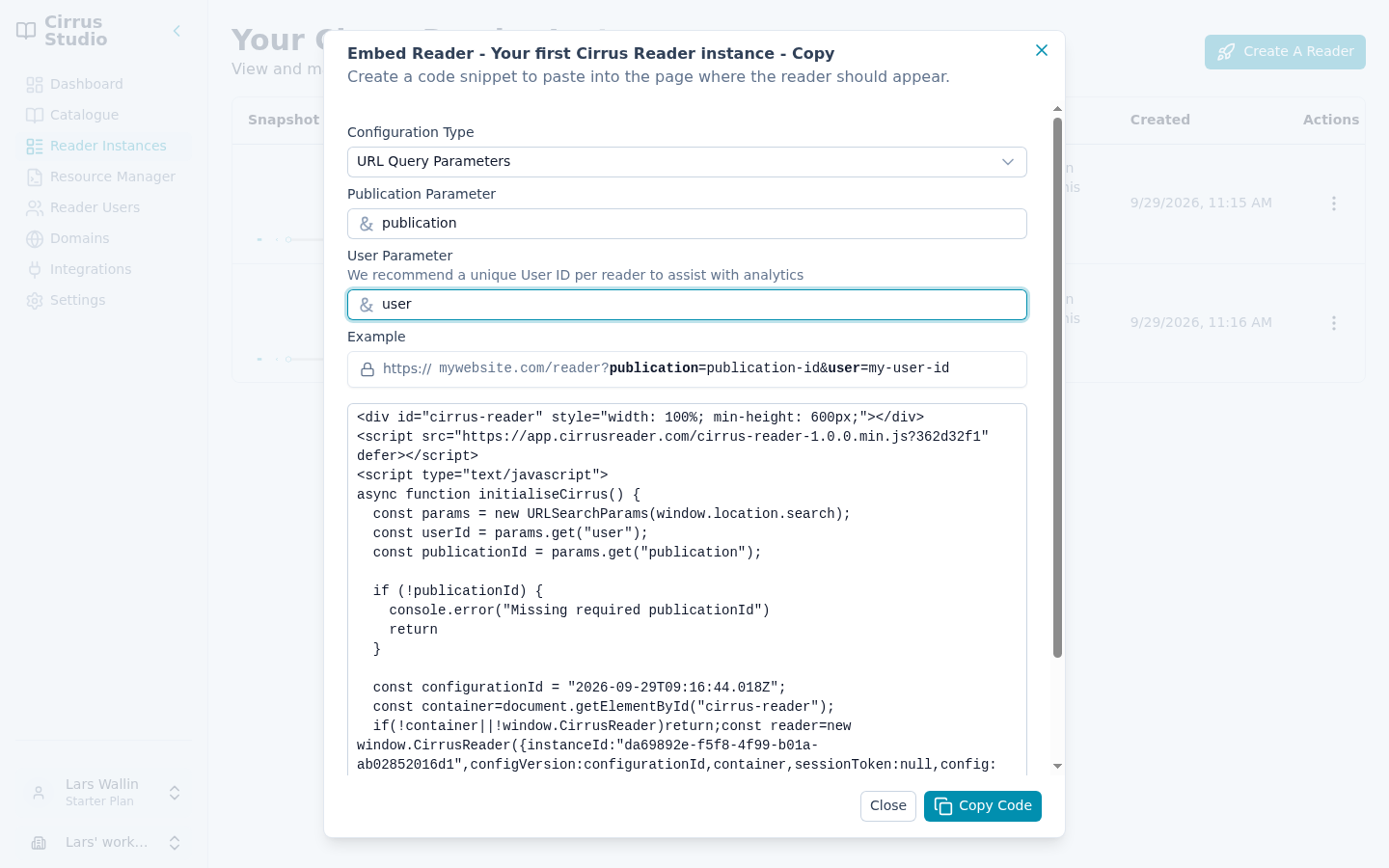
URL Query Parameters. Use this when one page should show different publications depending on its web address. The publication (and, optionally, the person reading) is named in the address itself, for example:
https://mywebsite.com/reader?publication=publication-id&user=my-user-id
- Publication Parameter: the name used in the address for the publication, for example
publication. - User Parameter: the name used in the address for the person reading, for example
user.
In this address, publication and user are the parameter names. The parts after each = are the actual publication ID and user ID; your website fills those in for each page. You only choose the names.
Cirrus Reader Studio shows an example address as you type.
10.4 Copy the code
The grey box shows the code. Click Copy Code to copy it, then paste it into an email or message to your web team. Click Close when you have finished.
10.5 Pre-Authentication
If the instance's security level is Pre Authentication, the dialog also shows an example of the request your website's server must send to Cirrus to start each reading session. Click Copy Token Request and include it with the embed code. Your web team will need an API key to make this request.
10.6 Re-copy the code after every change
The embed code includes the version of the Reader Instance's design. Each time you save the Reader Instance, the version changes.
After you change and save a Reader Instance that is already on your website:
- Open Embed for that instance again.
- Click Copy Code.
- Send the new code to your web team and ask them to replace the old code with it.
10.7 Before you go live: checklist
- The publication is Live.
- Your website's domain is listed under Permitted Domains for this instance.
- You have saved all changes to the instance before copying the code.
- If you use Pre Authentication, your web team has an API key and the token request.
- Your web team knows which User ID to pass for each reader (recommended for statistics).
- You have tested the page yourself, and you can see yourself under Reader Users afterwards.
10.8 What to send your web team
Send them:
- The embed code (from Copy Code).
- Where on the website it should go, and which publication(s) it should show.
- If you use URL Query Parameters: the parameter names you chose.
- If you use Pre Authentication: the token request (from Copy Token Request) and an API key. Send the key securely, not by ordinary email.
- A link to the developer documentation, docs.cirrusreader.com, which explains the technical details.