9. Reader Instances
A Reader Instance is the Reader Embed your readers see on your website. Click Reader Instances in the menu to see yours.
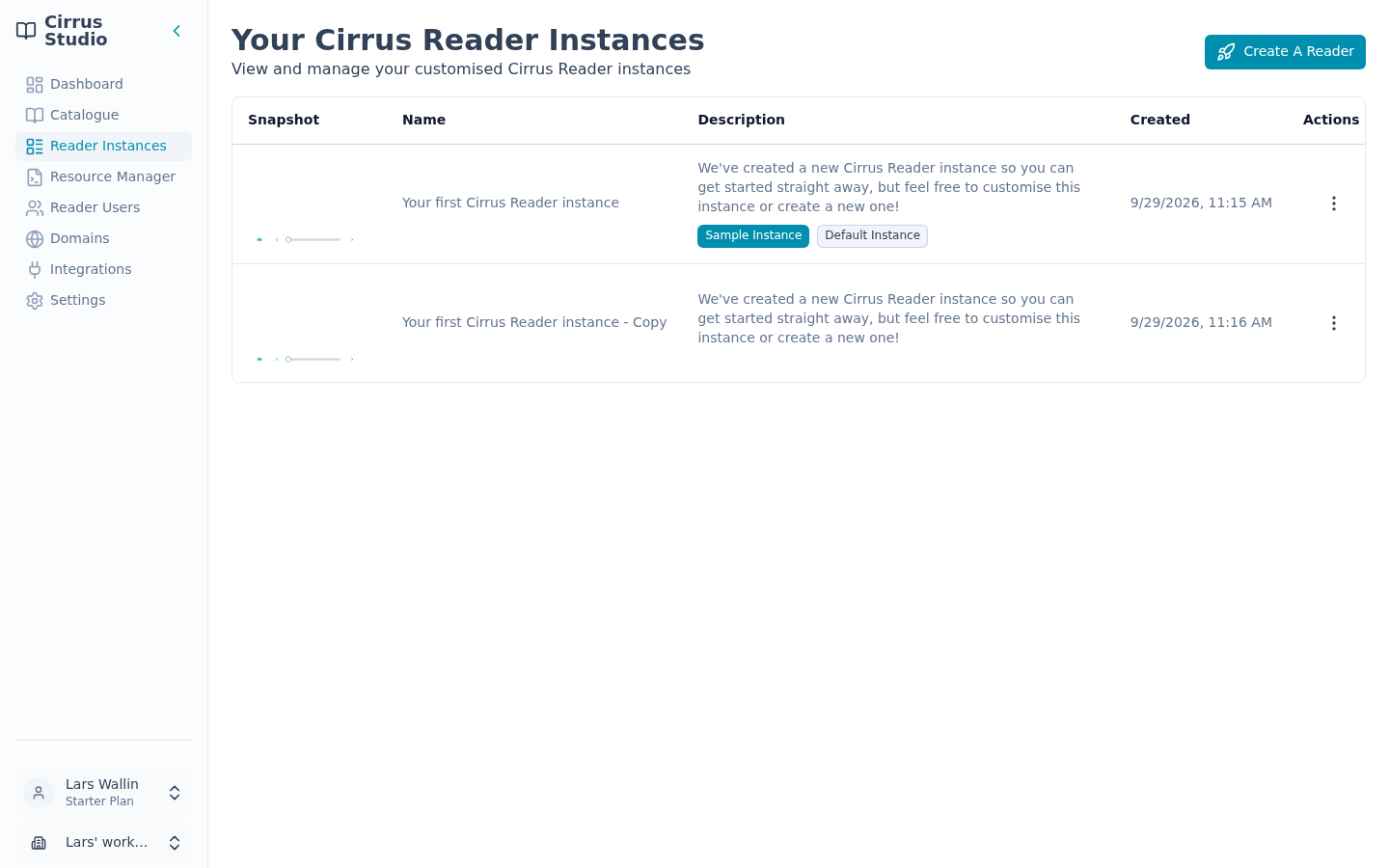
9.1 The Reader Instances list
Each row shows:
- Snapshot: an image of what the Reader Embed looks like.
- Name and Description.
- Labels: Default Instance marks the default instance; Sample Instance marks a sample instance.
- Created: when it was made.
Click a row to open it for editing. If you have more than 50 instances, click Load more at the bottom to see the rest.
Every new workspace starts with one instance, called "Your first Cirrus Reader instance". It is the default instance. You can use it as it is, change it or create more.
9.2 Actions for an instance (the ⋮ menu)
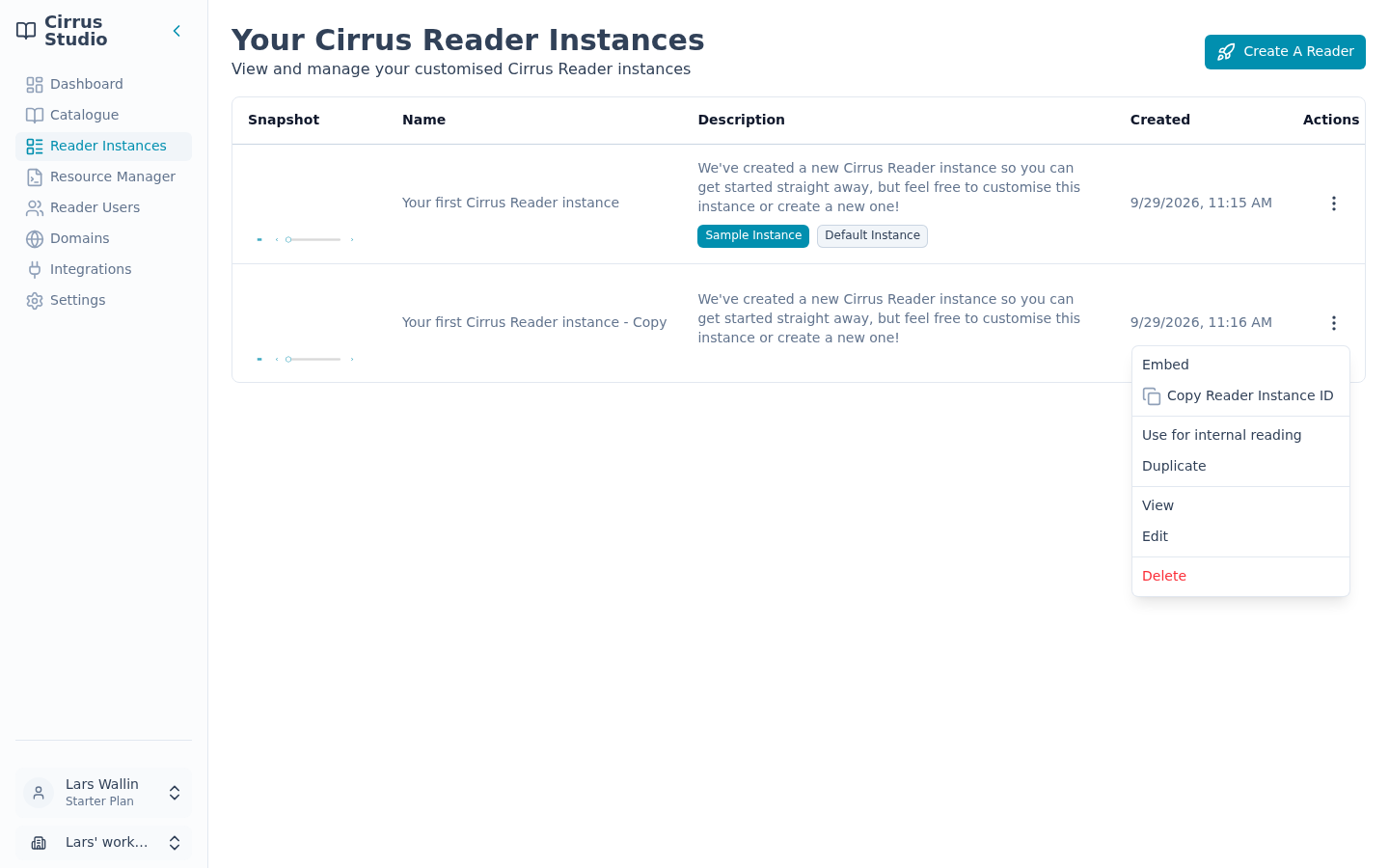
| Action | What it does |
|---|---|
| Embed | Gets the code to put this Reader Instance on your website. See Putting a Reader Instance on your website. |
| Copy Reader Instance ID | Copies the instance's unique ID. |
| Use for internal reading | Makes this the default instance. (Not shown on the instance that already is the default.) |
| Duplicate | Makes a copy called "name – Copy". A quick way to try out changes without affecting a Reader Instance that is already on your website. |
| View | Opens the Reader Embed full-screen with your preview publication, so you can try it out. Close it with ✕. |
| Edit | Opens the instance for editing (the same as clicking the row). |
| Delete | Deletes the instance after you confirm. Any website using it will stop showing the Reader Embed. |
Note: The default instance cannot be deleted. If you try, you will see the error message "Default instances cannot be deleted. Reassign the default instance and try again". You will need to make another instance the default first, using Use for internal reading.
9.3 Create or edit an instance
- To create a new instance, click Create A Reader at the top of the list. The page is titled Cirrus Reader Configuration.
- To change an existing instance, click its row. The page is titled Edit Cirrus Reader Configuration.
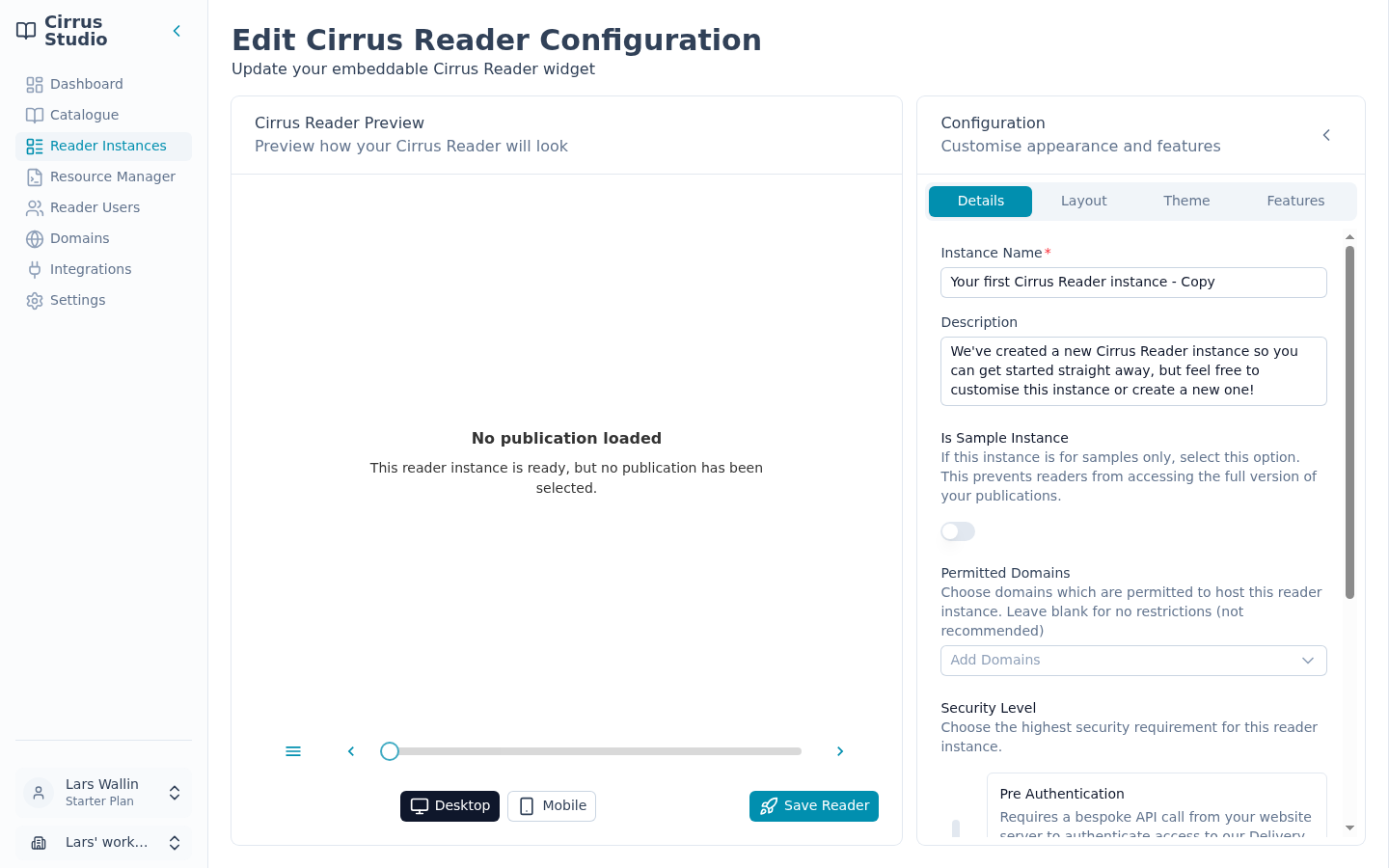
The page has two parts:
- Cirrus Reader Preview (left): a live preview of the Reader Embed, showing your preview publication. Use the Desktop and Mobile buttons to see how it looks on a computer or on a phone. If no preview publication has been chosen, the preview says, "No publication loaded"; see Choose the preview publication.
- Configuration (right): the settings, on four tabs: Details, Layout, Theme and Features. To give the preview more room, click the ‹ arrow to hide the settings, and Show Configuration to bring them back. On small screens, the settings open as a panel over the page.
When you have finished, click Create your Reader (new instance) or Save Reader (existing instance) under the preview. See Save your changes.
Details tab
| Setting | What it does |
|---|---|
| Instance Name (required) | A name to help you recognise this reader. Readers will not see it. |
| Description | Optional notes for you and your team. |
| Is Sample Instance | Turn on if this reader should show only the sample of each publication. "This prevents readers from accessing the full version of your publications." See Set up sample-only reading. |
| Permitted Domains | The websites allowed to show this Reader Instance. Click the box and choose from your domains, or type a new web address to add it. Leave this empty only if you really want any website to be able to show it (not recommended!). |
| Security Level | How strictly access is checked. Drag the slider or click one of the three cards. See below for further information. |
| Created At / Last Updated At | When the instance was created and last changed (existing instances only). |
Important: If you type a new web address into Permitted Domains, it is also added to your workspace's Domains list, where your colleagues will see it.
Security levels. Each level adds to the protection of the levels listed before it.
| Level | What Cirrus Reader Studio says | What it means for you |
|---|---|---|
| Authenticated Access (default) | "Requires only standard authentication to the Cirrus Delivery Network, preventing direct access to publications." | Works out of the box. Publications cannot be downloaded directly. |
| Signed Requests | "Requires every request to the Delivery Network to be uniquely signed to prevent bad-actor request modifications." | Extra protection against tampering. No extra work for you. |
| Pre Authentication | "Requires a bespoke API call from your website server to authenticate access to our Delivery Network." | The strictest level. Your website must ask Cirrus for permission before each reading session, using an API key. Your web team must set this up. See Pre Authentication. |
Layout tab
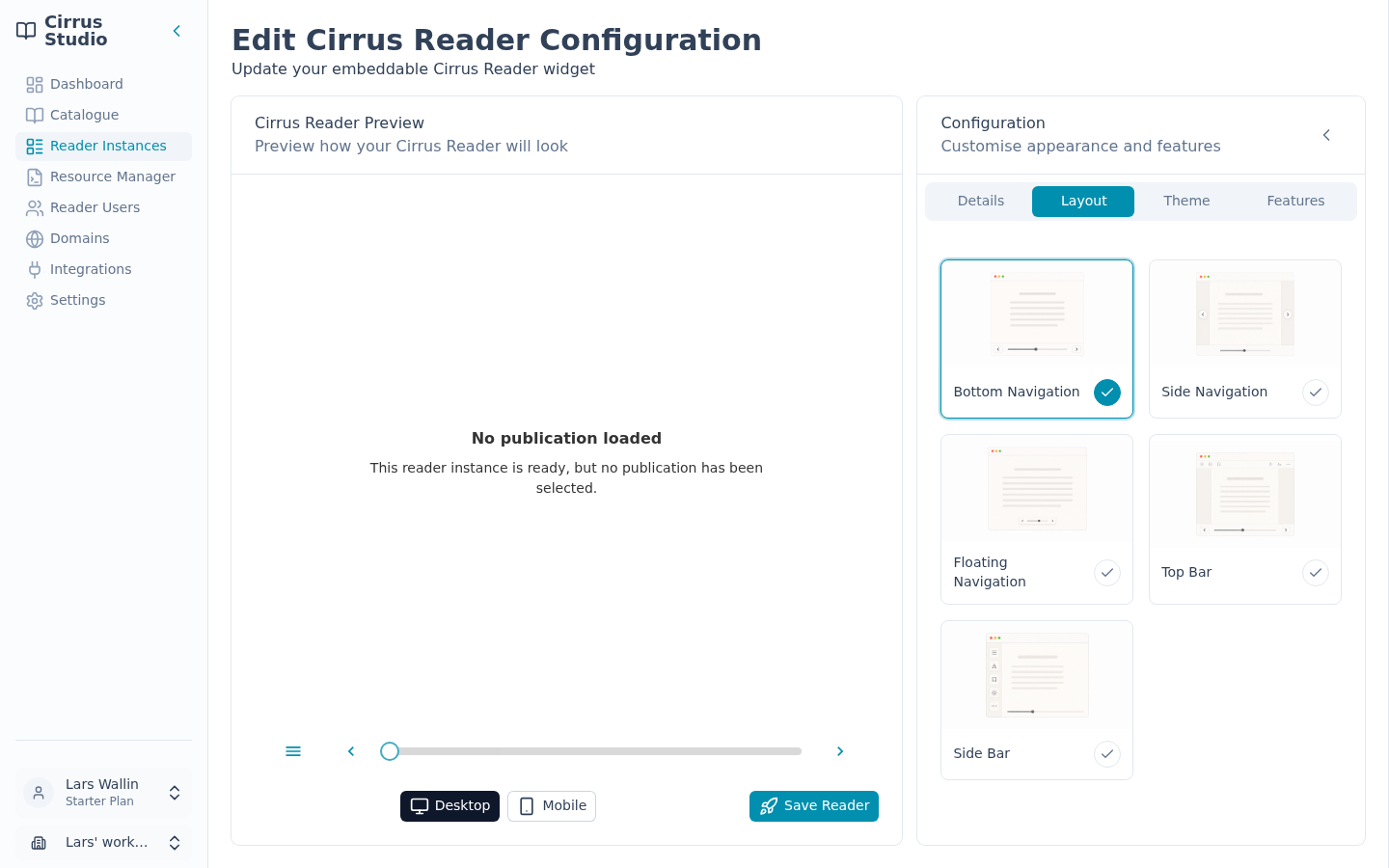
Choose where the buttons and controls appear in the Reader Embed. Click one of the five layouts:
- Bottom Navigation (default)
- Side Navigation
- Floating Navigation
- Top Bar
- Side Bar
The preview updates as you choose.
Theme tab
The Theme tab has four sections. Click a section's heading to open it.
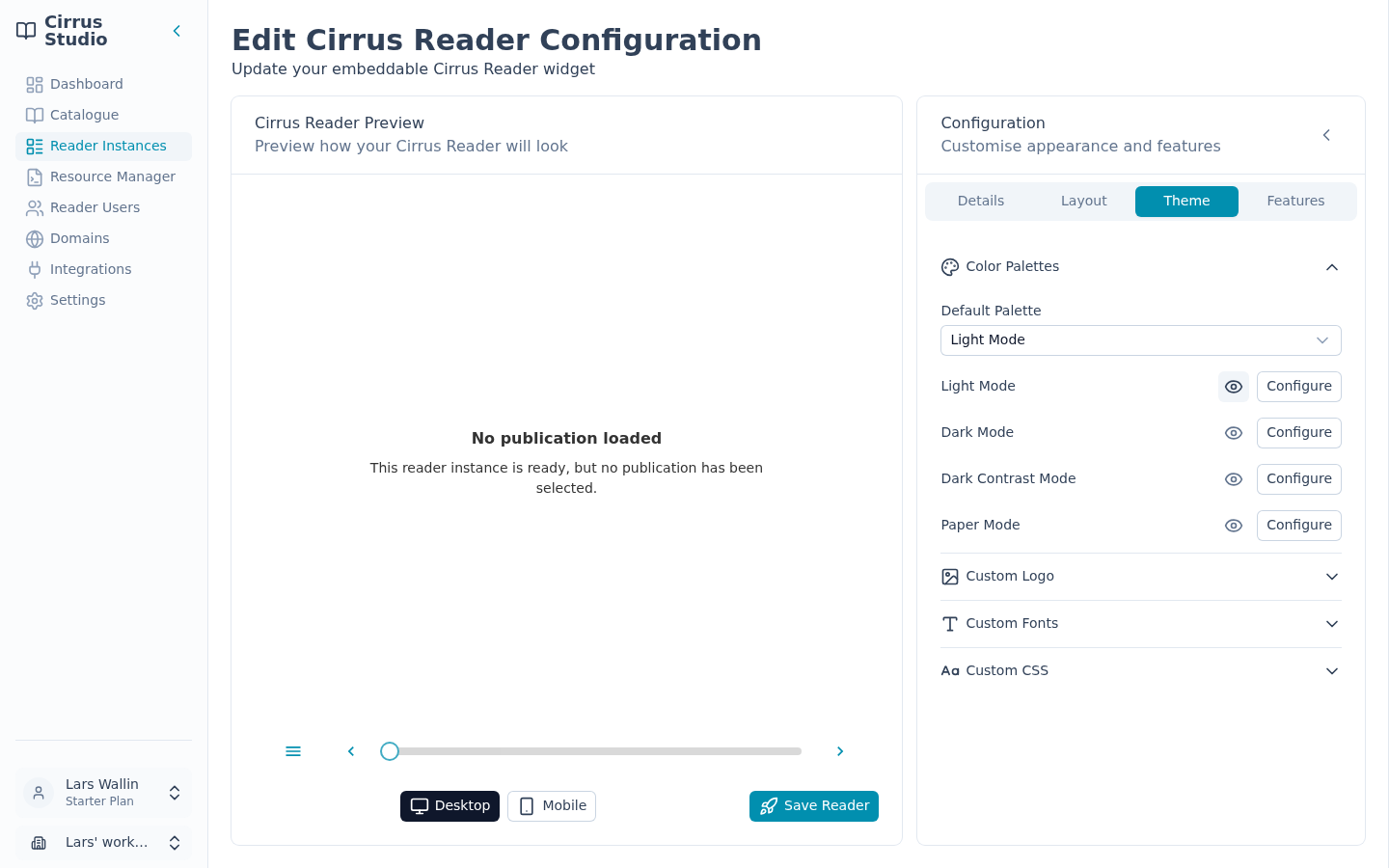
Color Palettes. A palette is a set of colours for the Reader Embed. There are four modes: Light Mode, Dark Mode, Dark Contrast Mode and Paper Mode.
- The Default Palette drop-down chooses the palette readers see first. As well as the four palettes, it offers System Aware, which follows each reader's device setting for light or dark.
- Click the eye button next to a palette to preview it.
- Click Configure next to a palette to change its colours. You can set the colours of the buttons and menus (Highlight, Background, Foreground) and of the reading area (Background Light, Background Dark, Foreground Light, Foreground Dark, Accent).
Note: Previewing a palette, or changing one of its colours, also makes it the Default Palette (unless the default is System Aware). Before you save, look at the Default Palette drop-down and, if needed, set it back to the palette you want readers to see first.
Custom Logo. Display your logo in the Reader Embed. Click Upload a Logo Resource to upload an image (JPEG, PNG or SVG formats supported, up to 2 MB), or choose one you have uploaded before from Existing Logo Resources. Logos are stored in the Resource Manager.
Custom Fonts.
- Include Fonts: the fonts readers can choose from. Pick from Your Fonts (fonts you have uploaded) and Cirrus Fonts (Inter, Roboto, Lato, Open Sans and Open Dyslexic, a font designed to help some people with dyslexia). Click Upload a Font Resource to add your own font.
- Default Publication Font and Default Publication Font Size (100% to 400%): how the text of the publication looks at first. Publication Default keeps the publication's own font.
- UI Font and Default UI Font Size (100% to 200%): the font of the Reader Embed's buttons and menus (UI means "user interface").
Custom CSS. For web designers: extra style rules applied to the publication's content. Leave this empty unless your web team has given you something to paste here. Changes are applied to the preview when you click outside the box.
Features tab
The Features tab has four sections.
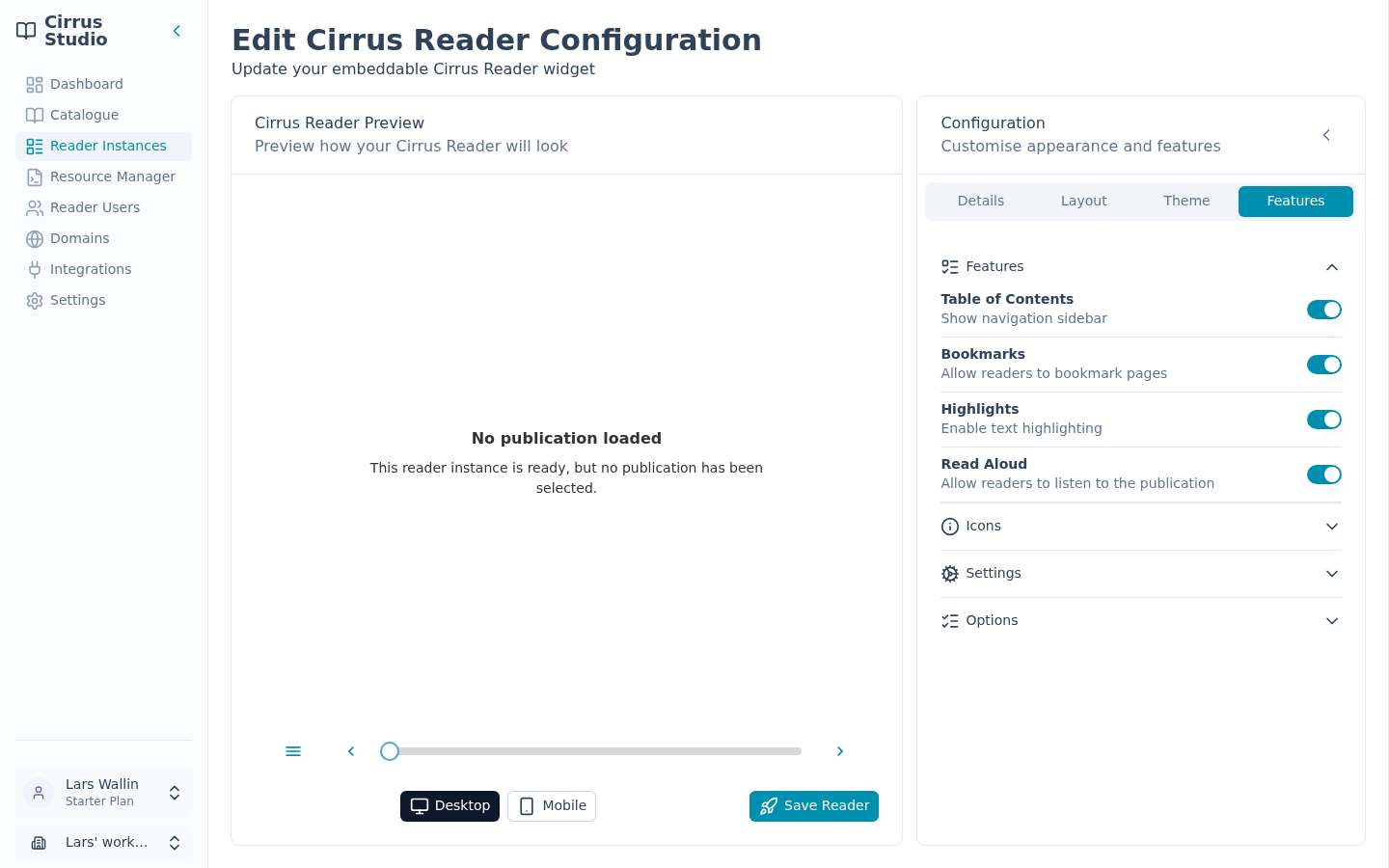
Features. Switch features on or off. All are on by default. Turning a feature off removes its button from the Reader Embed.
| Feature | What it lets readers do |
|---|---|
| Table of Contents | Open a list of chapters to navigate through the publication. |
| Bookmarks | Bookmark pages. |
| Highlights | Highlight text. |
| Read Aloud | Listen to the publication read aloud. |
Icons. Change the icon (the small picture) on each button in the Reader Embed. Each row is one button, listed by its technical name, for example navigate-next (the "next page" button) or show-bookmarks. For each one you can choose an icon you have uploaded, change its size (2 to 14) or click Upload icon to add a new one.
Settings. Choose which settings readers can change for themselves. All are allowed by default:
| Setting | Allows readers to… |
|---|---|
| Ignore Aspect Ratio | ignore the page's original shape. |
| Font Family | choose fonts. |
| Word Spacing | change the space between words. |
| Letter Spacing | change the space between letters. |
| Font Size | change the text size. |
| Line Height | change the space between lines. |
| Theme Mode | switch between light and dark, or follow their device. |
Options. Choose how pages are turned (Cirrus calls these renderers):
- Available Renderers: the page-turning styles readers can choose from: Single Page Swipe Renderer, Spread Swipe Renderer (two pages side by side), Flip Book Renderer, Single Document Scroll Renderer and Continuous Scroll Renderer. All except Continuous Scroll Renderer are on by default. At least one must be selected.
- Preferred Initial Renderer (Cirrus Reader Studio spells it this way): the style readers see first. Automatic lets Cirrus choose the best one for the publication and screen.
9.4 Save your changes
Click Create your Reader (new instance) or Save Reader (existing instance). If the name is missing, you see "Enter a name for this reader instance."
When saving, a message stays on screen until you close it:
- For a new instance: "Configuration created", with a Generate Embed Code button that takes you straight to the embed code.
- For an existing instance: "Configuration updated … Please update any embeds with the new configuration version."
Important: Every time you save a Reader Instance, its embed code changes. Websites that already show this reader must be given the new code. See Re-copy the code after every change.
9.5 Preview, duplicate or delete an instance
- Try it out: ⋮ → View opens the Reader Embed full-screen with your preview publication.
- Make a copy: ⋮ → Duplicate. Useful for trying out changes before replacing a Reader Instance that is already on your website.
- Delete: ⋮ → Delete, then confirm. Remove its embed code from your website first.
9.6 Change the default instance
The default instance is the one Cirrus Reader Studio uses when you open a publication inside Studio, for example with View Publication. To change it, open the ⋮ menu of another instance and choose Use for internal reading. The Default Instance label moves to that instance.
9.7 Set up sample-only reading
Use a sample instance to let people read a free extract (chapters or pages you choose) before they buy.
- For each publication, choose its sample. See Choose a sample.
- Create a new Reader Instance (or duplicate an existing one) and turn on Is Sample Instance on the Details tab.
- Save it, and embed it on the page where people should see the sample (for example, a product page).
Important: A sample instance will not open a publication that has no sample chosen; readers see an error message instead. Choose a sample for every publication you want to offer this way.