12. Resource Manager
The Resource Manager stores files you use in your Reader Instances: fonts, logos, images and icons. It also lists the custom metadata fields you have created. Click Resource Manager in the menu.
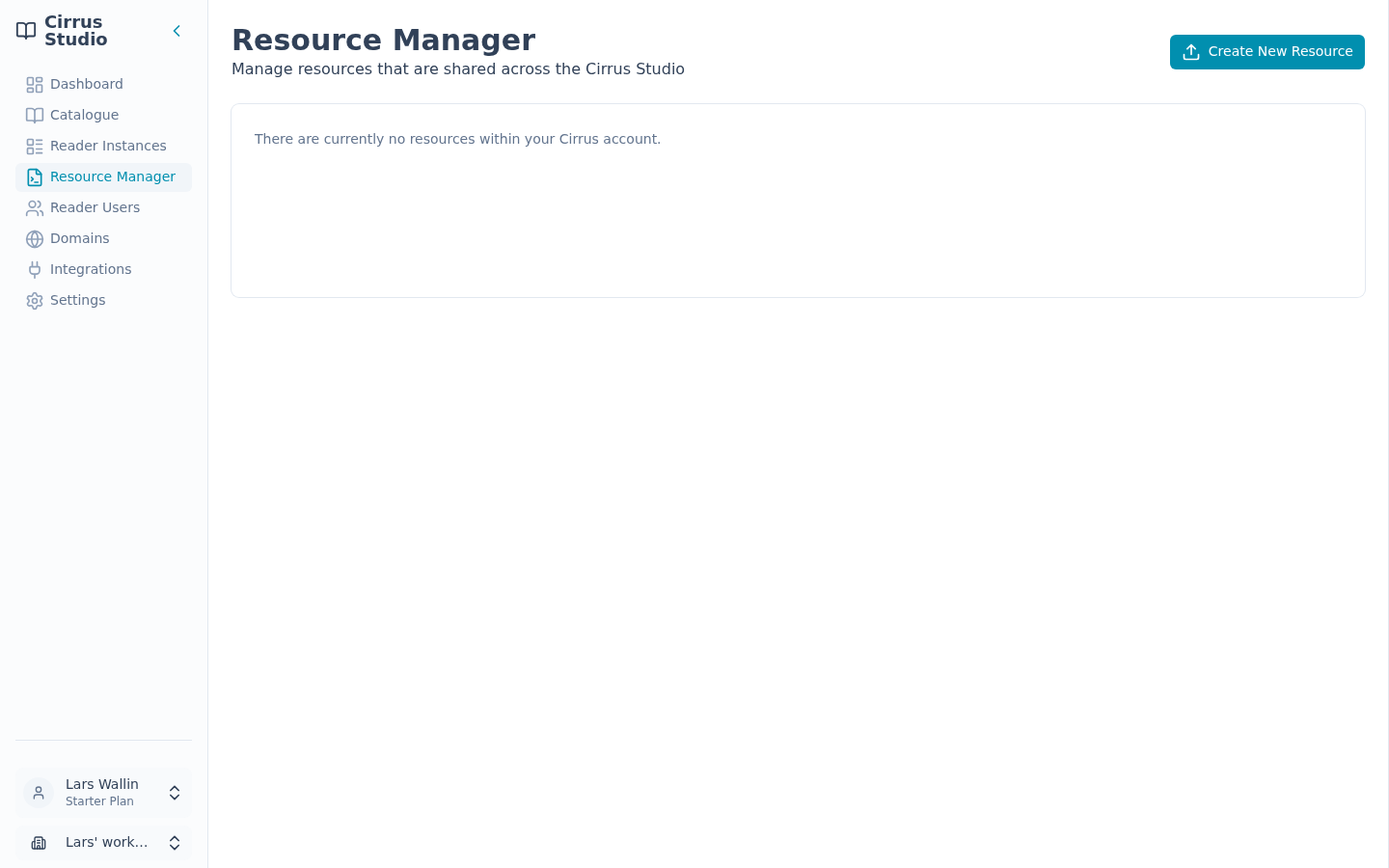
Resources are shown as a tree: Resources → Assets (with Fonts, Logos, Images and Icons) and Metadata Fields. Groups with nothing in them are hidden. If you have none at all, it says, "There are currently no resources within your Cirrus account." Click any item to see its details in the Properties panel.
12.1 Upload a file
- Click Create New Resource.
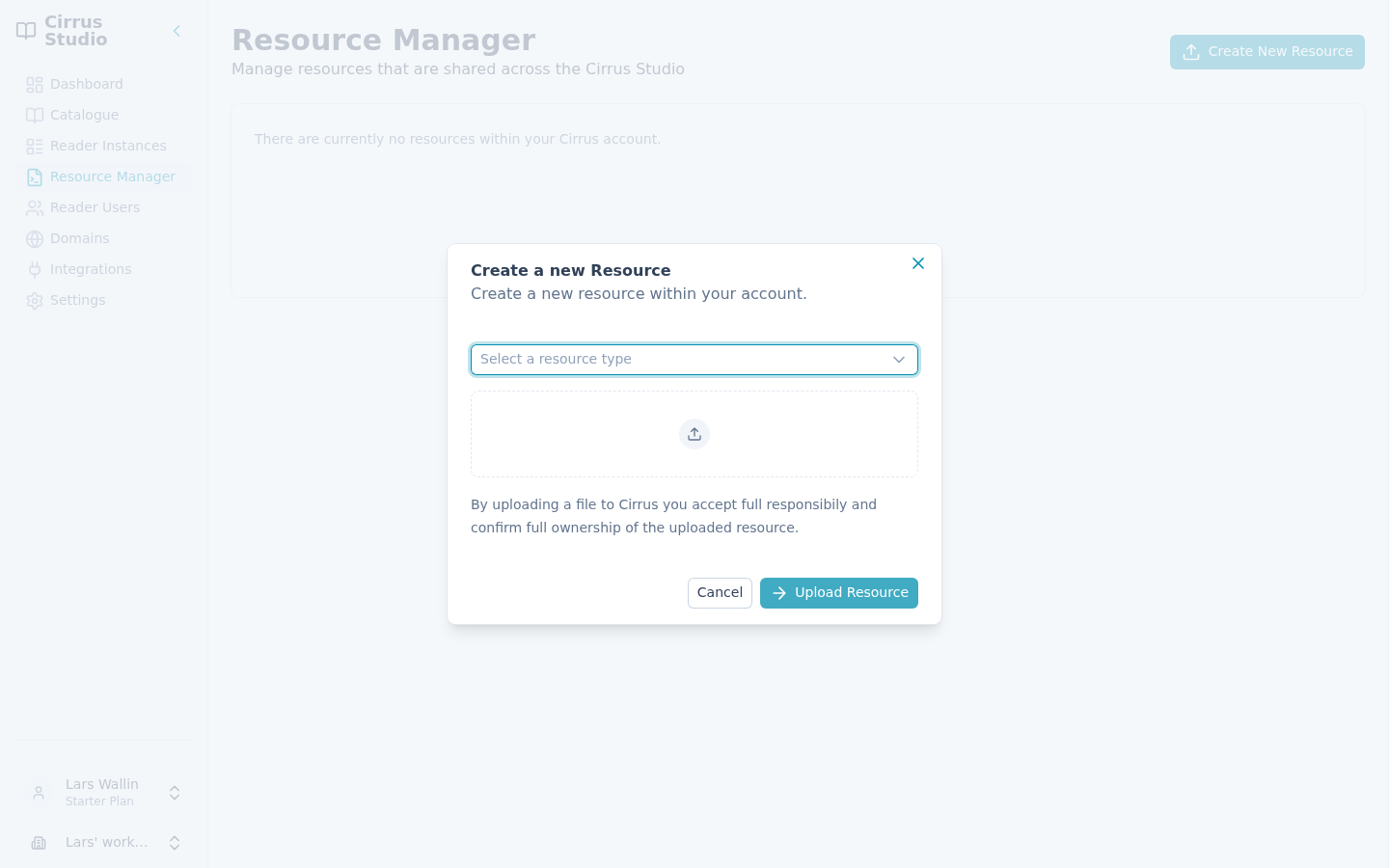
- Choose the type of resource under Select a resource type.
- Choose the file. It must be one of the types allowed for that resource:
Resource type Accepted files Font OTF, TTF, WOFF, WOFF2 Logo PNG, JPG, SVG Image PNG, JPG, SVG Icon SVG, PNG, JPG - Click Upload Resource. (The button only becomes available once you have chosen a type and a matching file.)
Note: The type list also offers Avatar. Avatars do not appear in the Resource Manager after upload however, so you do not need this option.
Note that, by uploading, you confirm that you own the file or have the right to use it.
Tip: You can also upload logos, fonts and icons directly from the Reader Instance editor. They are stored here too.
12.2 Rename, preview and check where a file is used
Click a file in the tree. Its Properties panel shows:
- Name, with Edit to rename it. (The file extension, such as
.ttf, stays the same.) - Preview. Fonts show "Aa Bb Cc 123" and a sample sentence.
- Type, Filename, Filesize and when it was Uploaded.
- Used by: links to each Reader Instance that uses this file.
12.3 Delete a file
Click Delete in the file's Properties panel and confirm.
You cannot delete a file that a Reader Instance is using; the button is inactive (greyed out) and shows "Asset is in use and cannot be deleted". Remove the file from those Reader Instances first (see Used by).
12.4 Manage metadata fields
Custom metadata fields (such as "Series") are created when you add custom metadata to a publication (see Change the cover and metadata). They cannot be created in the Resource Manager, but this is where you can tidy them up.
Click a field under Metadata Fields to see its Status (Active or Archived) and whether it is In use by any publication.
- Archive: hides the field from the list when anyone adds metadata to a publication. Publications that already have a value for it keep that value.
- Restore: makes an archived field available again.
- Delete: removes the field permanently. Only possible for fields that are archived and not in use.