15. Settings
Click Settings in the menu, or choose Account settings from the account menu. The Settings page has four tabs: Account, Subscription, Usage and Workspace. Subscription and Usage are only visible to admins.
15.1 Account
The Account tab holds your personal details and sign-in security. These belong to you, not to the workspace.
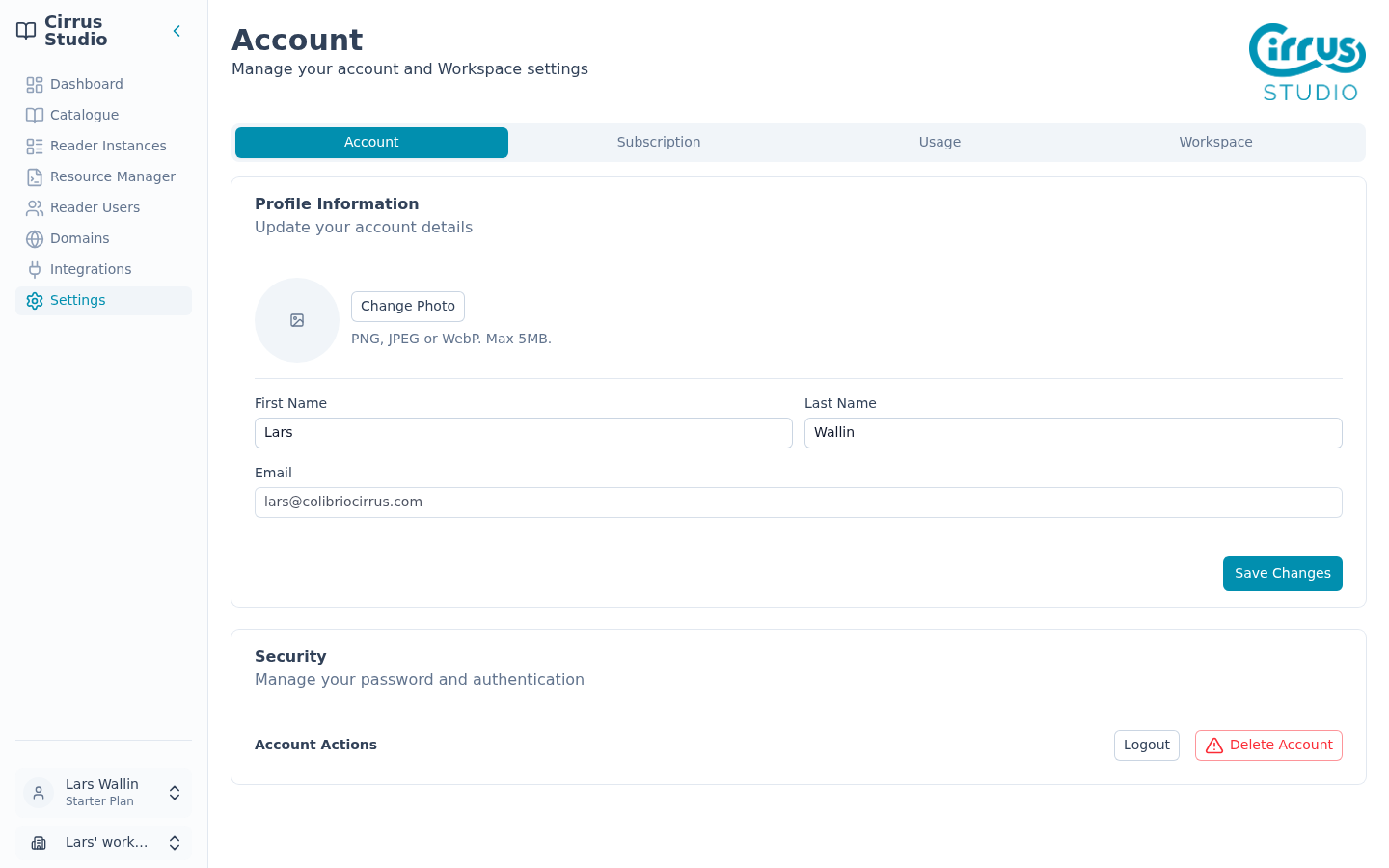
Profile information
- Change Photo: upload a picture of yourself (PNG, JPEG or WebP, up to 5 MB). Remove Photo takes it away.
- First Name and Last Name.
- Email: shown for information. It cannot be changed.
Click Save Changes to save.
Security
Note: The Security options below only appear if you sign in with an email address and password. If you sign in with Google, your password and two-factor authentication are managed by Google instead.
Change your password. Next to Password, click Change Password. Enter your current password and a new one (at least 8 characters, and different from the current one), then click Update password.
Two-factor authentication. Two-factor authentication adds a second step to signing in: after your password, you enter a 6-digit code from an authenticator app on your phone (such as Google Authenticator or Microsoft Authenticator). This keeps your account safe even if someone learns your password.
To turn it on:
- Next to Two-Factor Authentication, click Manage. The MFA settings dialog opens. (MFA, "multifactor authentication", is another name for two-factor authentication.)
- Under Authenticator app, click Set up authenticator.
- Scan the QR code with your authenticator app. If you cannot scan it, copy the code shown under Or copy code manually into the app instead.
- Enter the 6-digit code the app shows and click Verify and enable.
From now on you will be asked for a code each time you sign in. To turn it off, open Manage again, click Disable MFA, enter a current code from your app under *Authentication code and click Verify and disable.
Trusted devices. When you sign in with two-factor authentication, you may be able to trust the browser so you are not asked for a code every time. If you have trusted any devices, the MFA settings dialog shows a Trusted devices section listing them, with the one you are using marked This Device.
- Click Forget this device to stop trusting the browser you are using now.
- Click the bin icon next to another device to stop trusting it, for example, a lost computer.
Note: If you lose access to your authenticator app, contact support.
Account actions
- Logout: signs you out of Cirrus Reader Studio on all your devices.
- Delete Account: see below.
Delete your account
Important: If other people are members of your personal workspace, you must remove them before you can delete your account.
Important: Deleting your account also permanently deletes your personal workspace and everything in it: publications, collections, Reader Instances, domains, resources and API keys. Your memberships in other workspaces end (those workspaces are not affected), and your subscription will not renew.
- Click Delete Account. A dialog explains what will happen and gives the date of permanent deletion.
- Click Request account deletion to go ahead, or Keep account to cancel.
- You are signed out. Your account is permanently deleted 30 days later, or when your subscription ends if that is later.
If you change your mind, sign in again before deletion begins and choose Recover account (see Recover an account that is being deleted).
15.2 Subscription and billing (admins only)
The Subscription tab shows your plan, lets you change it and holds your payment details and invoices.
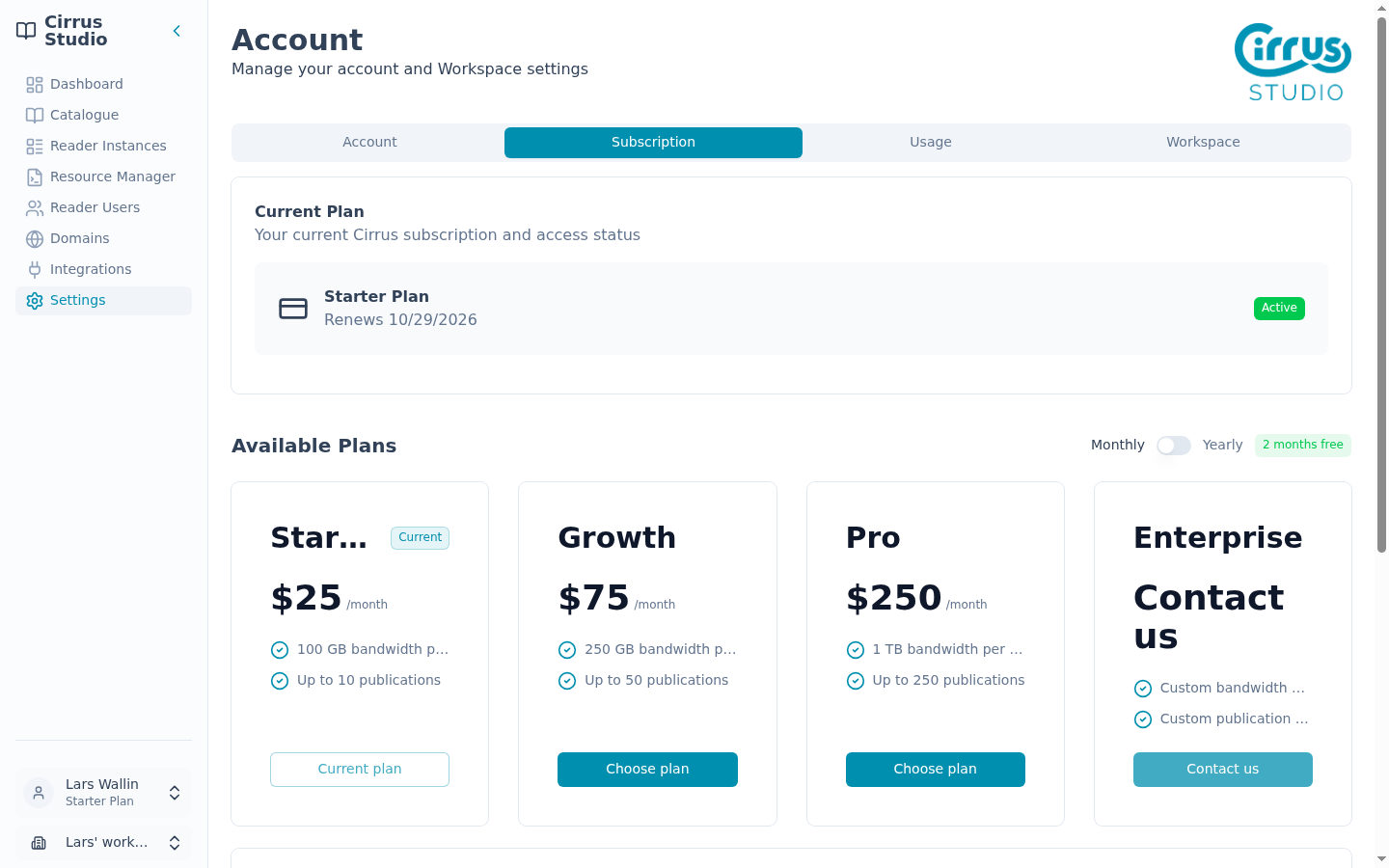
Current plan
Shows your plan, when it renews and its status, for example, "Starter Plan · Renews 10/29/2026 · Active".
Plans
Use the Monthly / Yearly switch to compare prices. Paying yearly gives you 2 months free. At the time of writing, the plans are:
| Plan | Monthly | Yearly | Data transfer per month | Publications |
|---|---|---|---|---|
| Starter | $25 | $250 | 100 GB | up to 10 |
| Growth | $75 | $750 | 250 GB | up to 50 |
| Pro | $250 | $2,500 | 1 TB | up to 250 |
| Enterprise | Contact us | Contact us | Custom | Custom |
Choose or change a plan
- Click Choose plan on the plan you want.
- What happens next depends on your situation:
- During a trial, or if your plan has ended: a checkout form opens. Enter your billing address, a promotion code if you have one and your card details, then click Subscribe.
- If you already have a plan: a summary of the change opens. Check it and confirm.
- Upgrades (to a bigger plan, or from monthly to yearly on the same plan) take effect immediately.
- Downgrades (to a smaller plan) take effect at the end of the current billing period. Until then, the page shows "Plan change scheduled". To change your mind, click Cancel scheduled change.
For the Enterprise plan, contact Cirrus (see Getting help). The Contact us button is not active yet.
Payment method
Shows the card used for your subscription (card type, last four digits and expiry date). Click Update to use a different card.
Invoice history
Lists your invoices with their number, date, amount and status. Click View to see an invoice online, or PDF to download it.
Payment problems
If a payment fails, a message appears on this tab, such as "Subscription payment failed", "Your account is in a payment grace period", "Payment authentication required", "Subscription unpaid" or "Billing access blocked". Each has an Update payment method button. Fix the problem as soon as you can to avoid restricted access. During a grace period, the message tells you the date by which you must pay.
15.3 Usage (admins only)
The Usage tab shows how much data transfer (bandwidth) your readers have used.
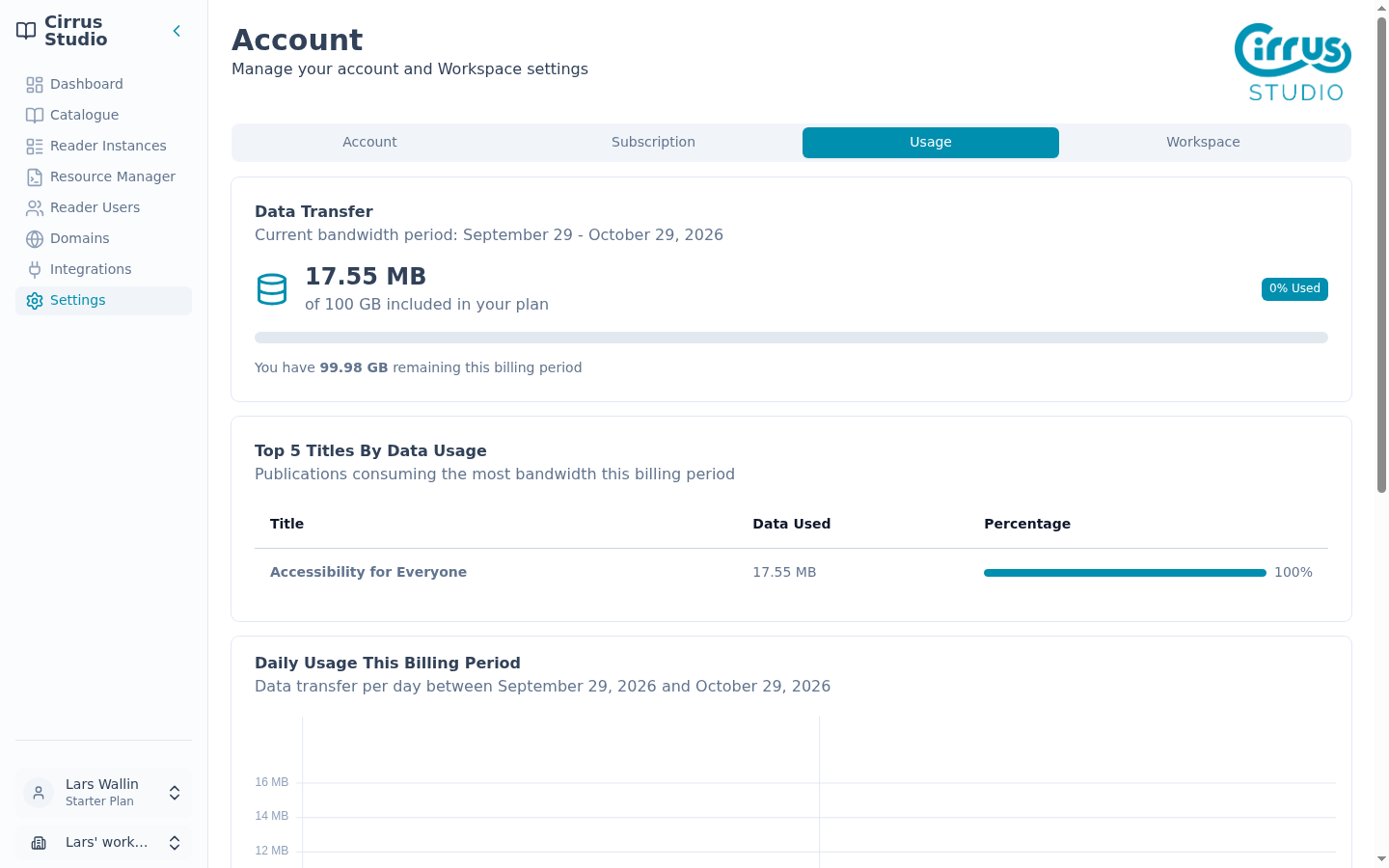
- Data Transfer: the current billing period (for example, "September 29 – October 29, 2026"), how much has been used out of your plan's allowance (for example, "17.55 MB of 100 GB included in your plan"), the percentage used and how much is left.
- Top 5 Titles By Data Usage: the publications that used the most data this period.
- Daily Usage This Billing Period: a chart of data used each day.
- Previous Billing Period Usage: a card for each earlier period. Recent figures may be marked as provisional until they are final.
- Projected Bandwidth Next Billing Period: an estimate for next period, based on the past three periods. It says, "Insufficient data" until three full billing periods have passed.
15.4 Workspace
The Workspace tab is where you name your workspace and manage the people in it.
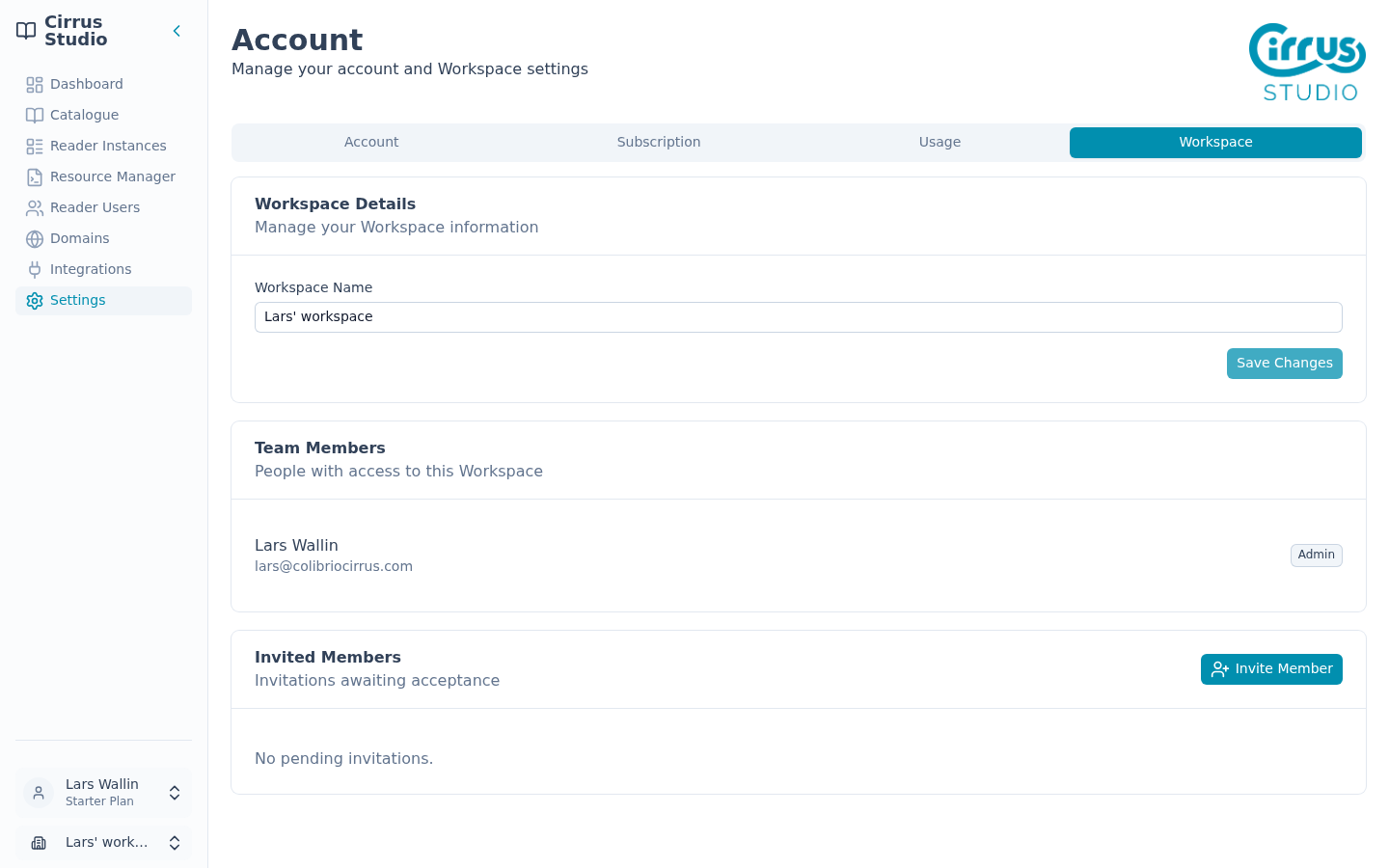
Rename the workspace (admins only)
Change Workspace Name (up to 120 characters) and click Save Changes.
Team members (admins only)
Team Members lists everyone in the workspace with their email address and role (Admin or Member). Admins can:
- Promote a member to admin.
- Remove a member from the workspace.
Only the owner can Demote an admin back to a member. Admins cannot be removed until they have been demoted.
Invite someone (admins only)
- Under Invited Members, click Invite Member.
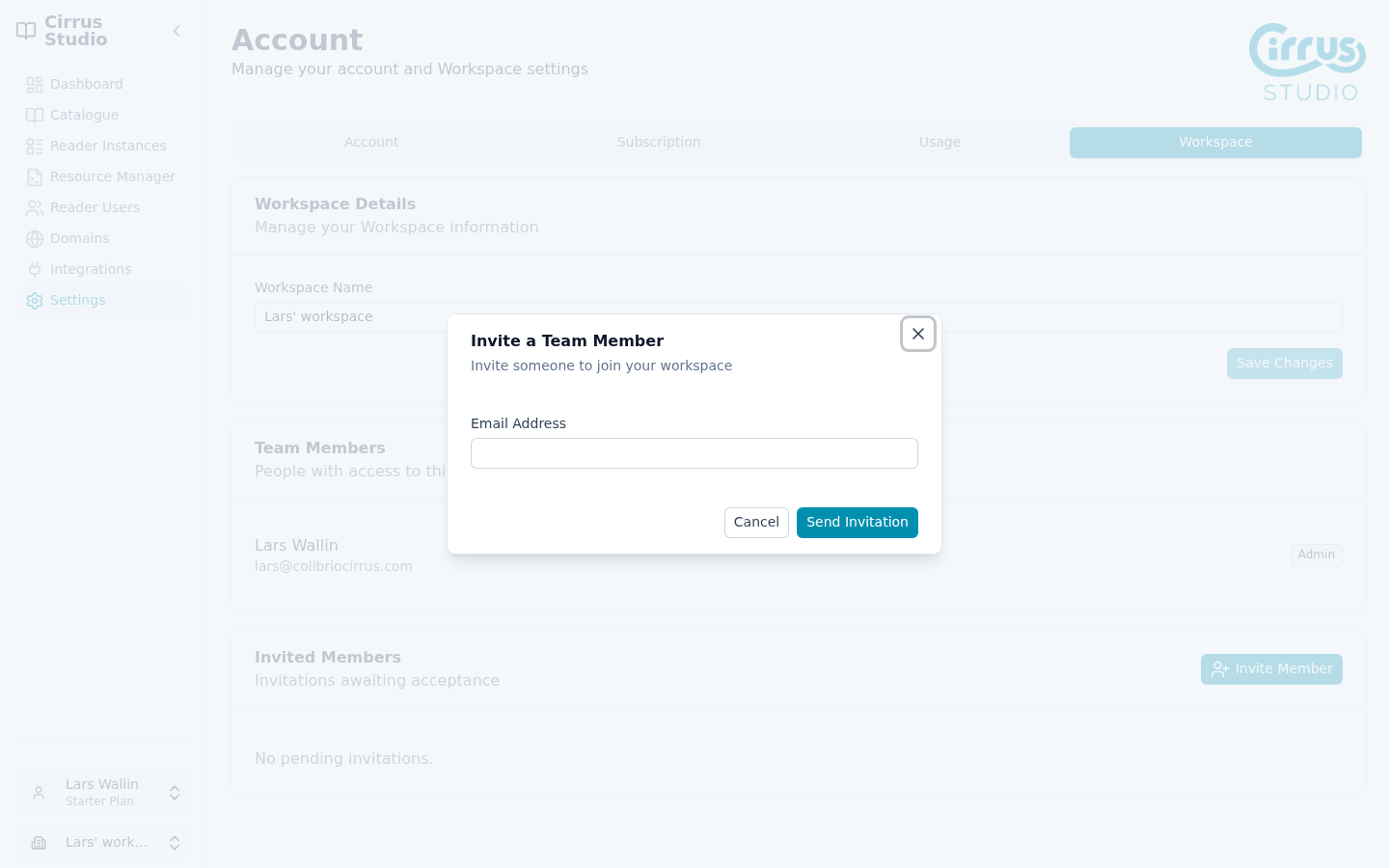
- Enter their Email Address and click Send Invitation.
They receive an email with a link to join (see Join someone else's workspace). Things to know:
- Inviting requires an active paid plan. During a trial you will see "A paid plan is required to invite members".
- New people always join as Member. Promote them afterwards if they need to be admins.
- Invitations expire after 7 days.
- Pending invitations are listed under Invited Members. To cancel one, click Revoke. This cannot be undone; send a new invitation if needed.
Leave a workspace
If you are in someone else's workspace, the Workspace Membership section has a Leave Workspace button. You lose access to that workspace straight away. You cannot leave your own personal workspace.
15.5 When access is restricted
If the free trial ends without a plan, or a payment fails and is not fixed during the grace period, access to the workspace is restricted:
- Only Dashboard and Settings are available. The other menu items are hidden, and trying to open those pages takes admins to Settings → Subscription.
- A message that cannot be dismissed says: "Account access is restricted. Update your payment method or resolve the outstanding invoice to restore access." with a Resolve billing button.
If you are an admin: click Resolve billing, then choose a plan or update your payment method on the Subscription tab. Access returns once payment succeeds.
If you are a member: you cannot see the Subscription tab, so Resolve billing and the hidden menu items just take you back to the Dashboard. Ask an admin of the workspace to fix the billing.