7. Catalogue: publications
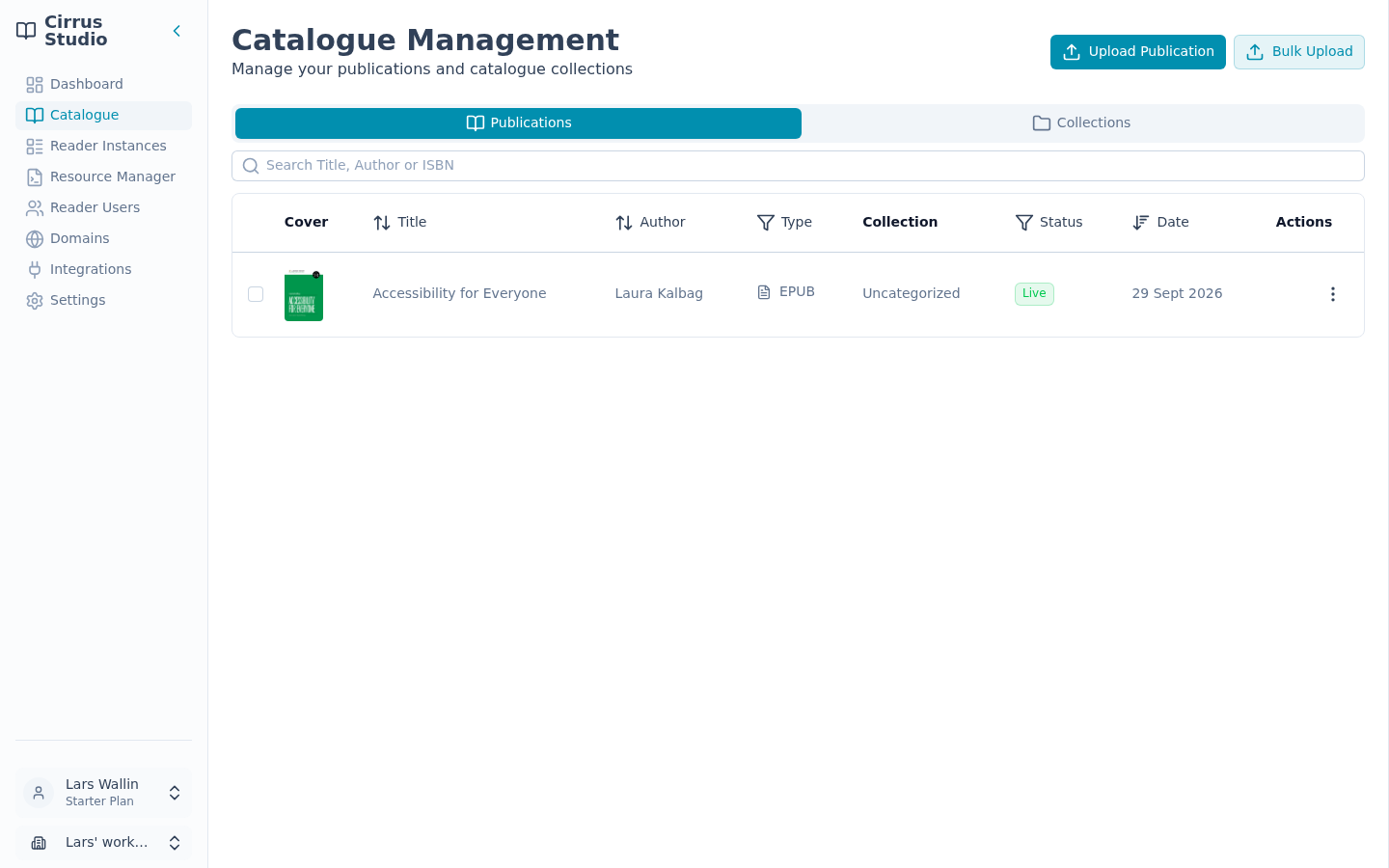
All your publications live in the Catalogue. Click Catalogue in the menu. The page has two tabs: Publications (described here) and Collections (see Collections).
7.1 Find a publication
The Publications tab lists every publication in your workspace, 25 to a page. Use Next and Previous at the bottom to move between pages.
- Search: type in the Search Title, Author or ISBN box. The list updates as you type.
- Sort: click the Title, Author or Date column heading to sort by that column. Click again to reverse the order. The newest publications are shown first by default.
- Filter: click the Type heading to show only certain kinds of publication (Reflowable EPUB, Fixed-layout EPUB, PDF, Audio). Click the Status heading to show only Live or Draft publications.
Each row shows the cover, title, author, type, the collections it belongs to (or Uncategorized), its status and the date it was added.
If nothing is shown, a message tells you why: you have no publications yet, nothing matches your search or nothing matches your filters. Clear the search box or filters to see all your content again.
7.2 Upload a publication
- In the Catalogue, click Upload Publication. The Add new Publication dialog opens.
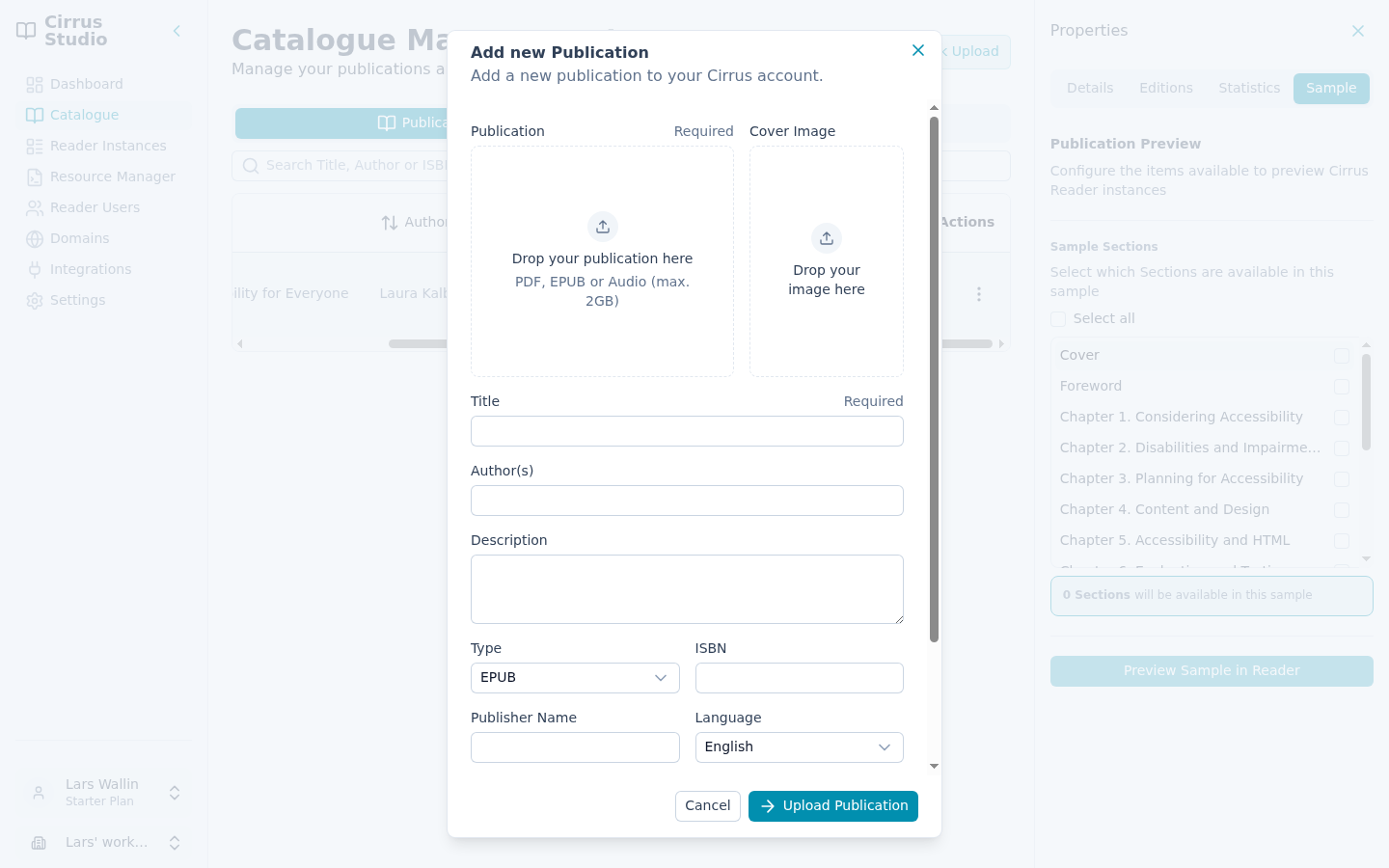
- Under Publication, drag your file onto the “Drop your publication here box” area, or click the box to choose a file. You can upload an EPUB, a PDF or an audiobook in the W3C Audiobook format (a file ending in
.lpf). Files should not be larger than 2 GB. Other audio files, such as MP3, cannot be uploaded directly. - For EPUB and PDF files, Cirrus Reader Studio reads the file and fills in the title, author, publisher, description, language and cover for you. Check these and correct them if needed. Once the publication is uploaded, the title, author, description and language can only be changed by uploading a new edition, so please take a moment to get them right.
- Fill in or check the other fields:
Field What to enter Cover Image Optional. An image for the cover. EPUB covers are picked up automatically. Title (required) The publication's title. Author(s) Type a name and press Tab (or click elsewhere) to add it. Repeat for each author. Description A short summary. Type EPUB, PDF or Audio. This is set automatically from the file. ISBN Optional. Must be a valid 10- or 13-character ISBN. Publisher Name Optional. Language The language of the publication. English is selected by default. Collection Optional. Choose one or more collections. Status Draft (hidden from readers, the default) or Live (available to readers). - Click Upload Publication.
The dialog closes and the publication appears in the list. It shows a small status icon while it is processed. Once the upload is complete the icon simply disappears when the publication is ready.
If something is wrong with the form, for example a missing title or an invalid ISBN, a message appears and the dialog stays open so you can fix it.
7.3 Upload several publications at once
There are two ways to upload many publications in one go. Both accept EPUB and PDF files only; upload audio files one at a time as described above.
Drag and drop
- Open the Publications tab of the Catalogue.
- Drag one or more EPUB or PDF files from your computer onto the page. A Publication queue opens, listing each file.
- Choose one:
- Upload all: uploads every file straight away as a Draft, using the file name as the title. You can add details afterwards.
- Edit publications: opens the upload form for each file in turn ("Adding publication 1 of 5", and so on) so you can check the details first. In this mode, Cancel skips the current file and moves on to the next; Cancel All stops altogether.
Each file in the queue shows its progress: Pending, Uploading, then Uploaded (or Failed). Files of other types are ignored; if none of the files are EPUB or PDF, you will see the error message "Unsupported files".
From Google Drive (Bulk Upload)
- In the Catalogue, click Bulk Upload.
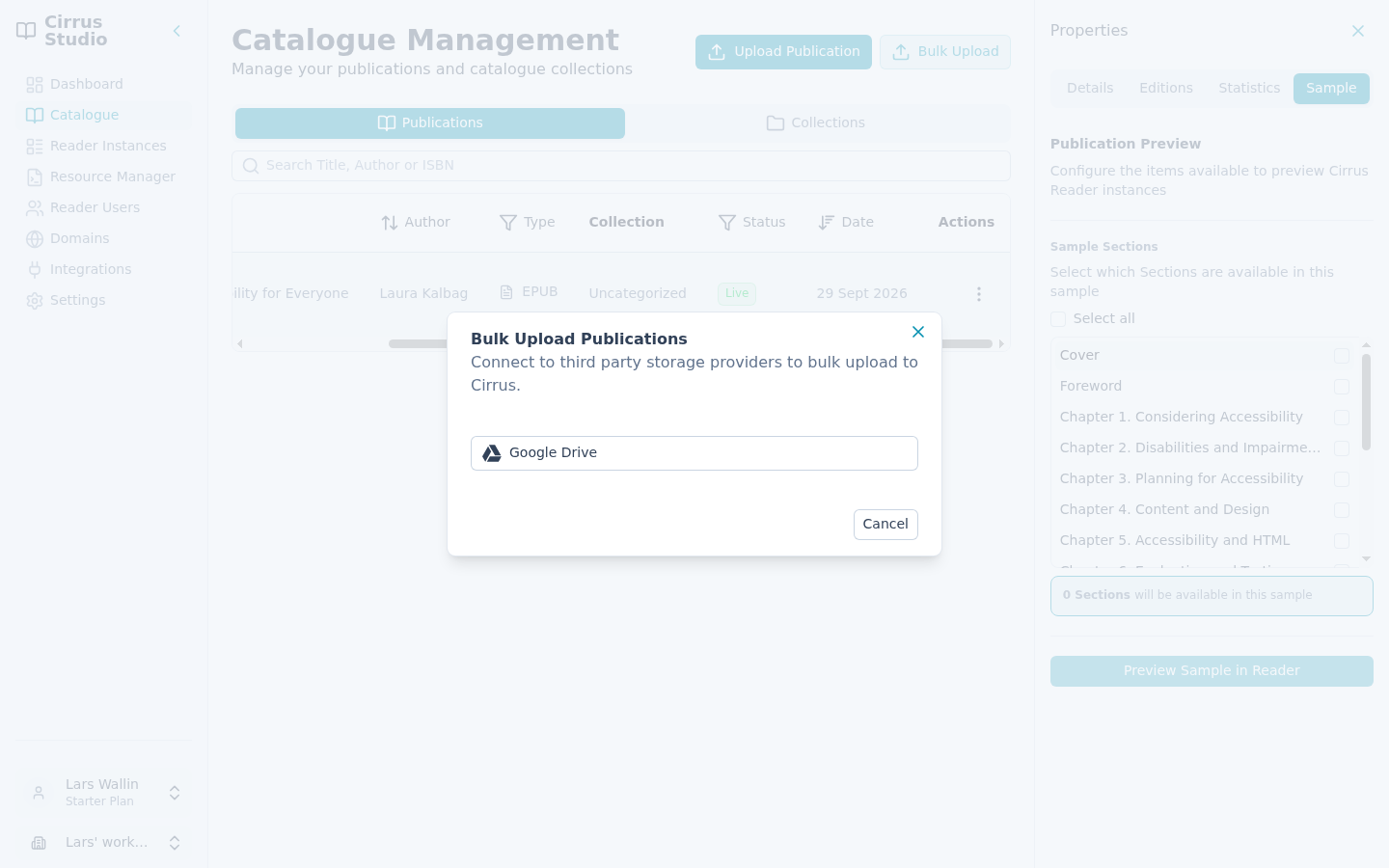
- Click Google Drive and sign in to your Google account when asked.
- In the Google file picker, select one or more EPUB or PDF files and confirm.
Cirrus Reader Studio shows "Publications are being imported. We are processing your publications in the background." The publications appear in your catalogue as they finish.
Tip: If nothing happens when you click Google Drive, your browser may have blocked the pop-up window. Allow pop-ups for studio.cirrusreader.com and try again.
7.4 Processing and failed uploads
After you upload a file, Cirrus Reader Studio checks it for viruses and prepares it for reading. This takes a short while. Until processing has finished, you cannot open, edit or select the publication. A small icon next to its title shows its progress.
While a publication is being processed, an icon appears next to its title. Hover over the icon to see what is happening:
| State | Message | What to do |
|---|---|---|
| Processing | "We are processing this file. It will update when complete." | Wait until completed. |
| Scanned | "This file has been scanned successfully and is now being processed." | Wait until completed. |
| Quarantined | "This file has been scanned by an antivirus and found to be dangerous. It has been quarantined." | Check the file on your computer with your antivirus software. Contact support if you believe it is in face safe. |
| Failed | "We were unable to upload this publication and process it. Please contact support." | Contact support. |
| Deleted | "This publication has been deleted and is no longer available." |
You cannot open, edit, select or delete a publication until processing has finished successfully. You cannot remove a failed or quarantined upload yourself. Ask support to remove it.
7.5 Actions for a publication (the ⋮ menu)
Click ⋮ at the end of a publication's row to see:
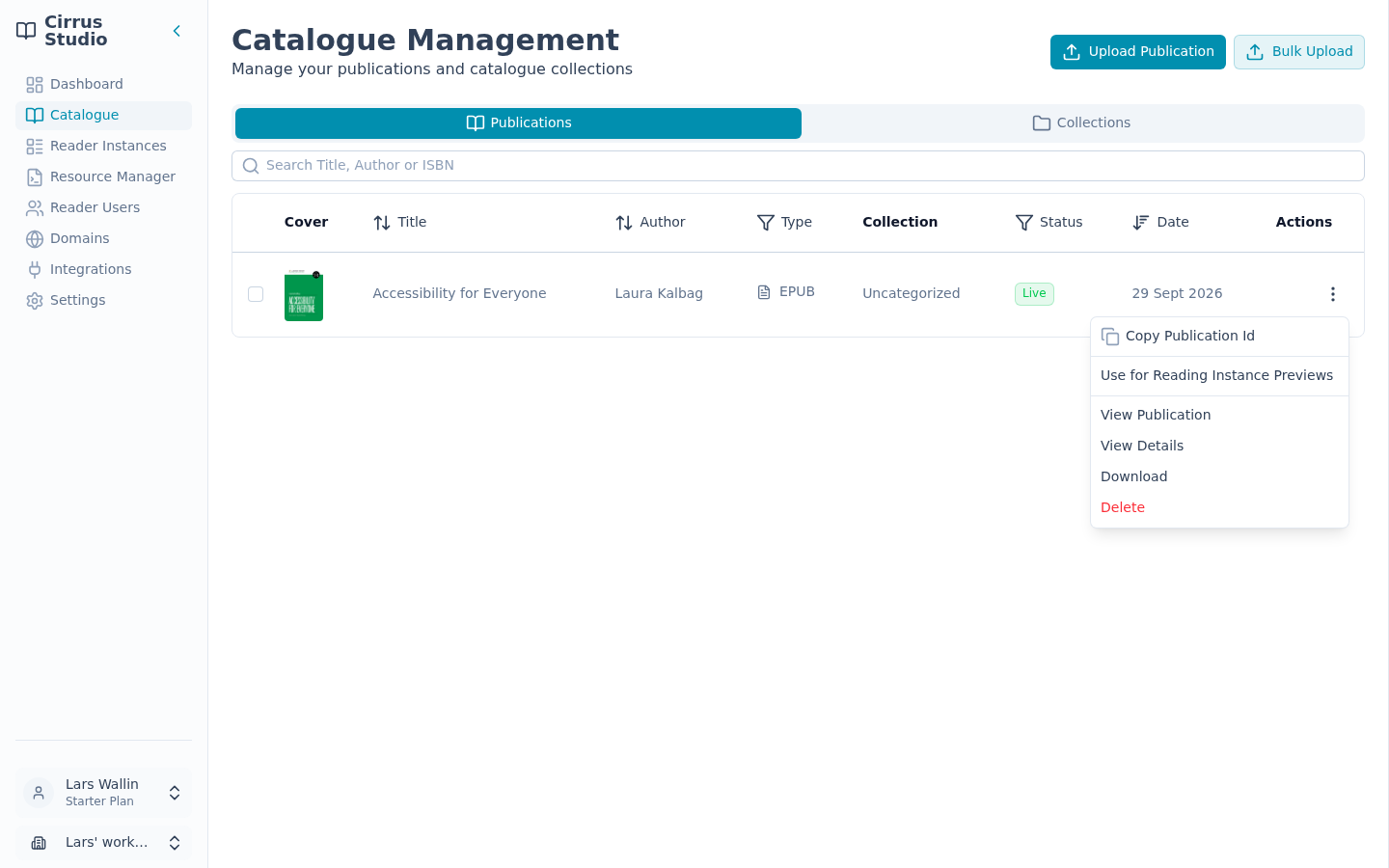
| Action | What it does |
|---|---|
| Copy Publication Id | Copies the publication's unique ID. Your web team needs this to show a particular publication on your website. |
| Use for Reading Instance Previews | Makes this the preview publication. |
| View Publication | Opens the publication full-screen in your default instance, so you can view it as a reader would. |
| View Details | Opens the Properties panel. Clicking anywhere on the row does the same. |
| Download | Downloads the publication's file to your computer. |
| Delete | Deletes the publication after you confirm. |
7.6 The Properties panel and how saving works
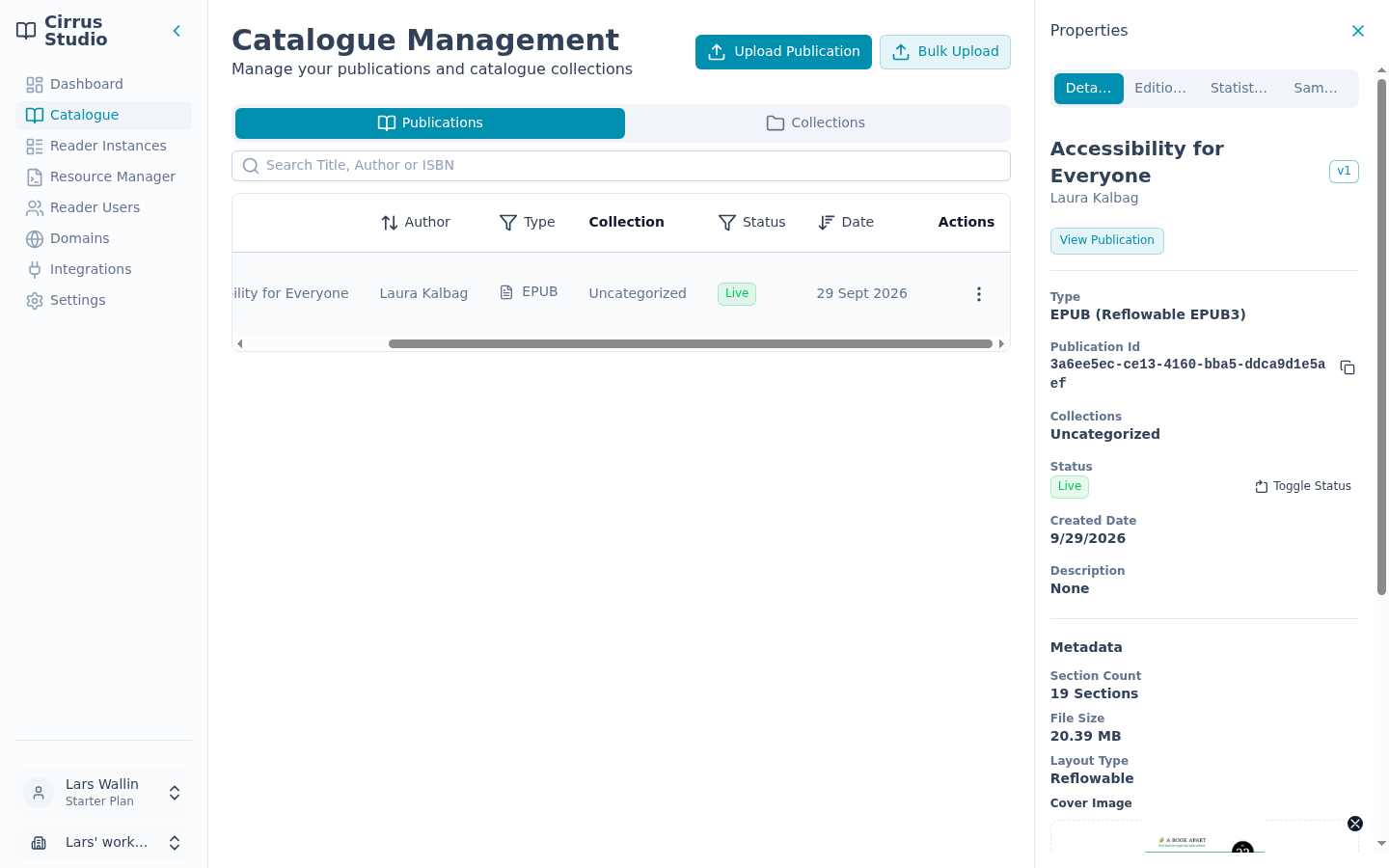
Click a publication's row to open its Properties panel on the right. It has four tabs: Details, Editions, Statistics and Sample.
Important: How saving works. Changes to the cover, metadata and sample are not saved immediately. When you make one, a Save Publication Data button appears at the bottom of the panel. Click it to save.
If you try to open a different publication, close the panel or change tab before saving, Cirrus Reader Studio asks what to do with your Unsaved Changes: Continue Editing (go back), Reset (throw the changes away) or Save.
A few actions do save immediately, without Save Publication Data: Toggle Status, Set as Current, Get Publication Cover and Use for Reading Instance Previews.
The Details tab
At the top you see the title, author, the edition number (for example, v1) and a View Publication button. Below are:
- Type: for example, "EPUB (Reflowable EPUB3)".
- Publication Id: with a copy button.
- Collections, Created Date and Description.
- Edition Notes: shown for version 2 and later. (Edition notes cannot currently be entered in Cirrus Reader Studio.)
- Status: Live or Draft, with the Toggle Status button. See Make a publication Live or Draft.
- Metadata: see Change the cover and metadata.
7.7 Make a publication Live or Draft
- Open the publication's Properties panel.
- On the Details tab, click Toggle Status.
- From Draft to Live: the change happens straight away. Readers can now open the publication.
- From Live to Draft: Cirrus Reader Studio warns "Existing readers will no longer have access to this publication." Click Yes to confirm.
7.8 Change the cover and metadata
The Metadata section of the Details tab shows:
- Details read from the file, which you cannot change: Section Count (for reflowable EPUBs) or Page Count (for other types), File Size and Layout Type.
- The Cover Image.
- Alt Text (a short description of the cover for people who cannot see it), ISBN, **Publisher and any custom fields you have added.
To upload a new cover:
- If there is a cover already, click the ✕ in the corner of the cover image to remove it.
- Drop a new image (PNG, JPG or SVG) onto the cover area, or click it to choose a file.
- Click Save Publication Data.
To use the cover inside an EPUB file (only when the publication has no cover): click Get Publication Cover. This saves straight away.
To change the metadata:
- Click Edit Metadata.
- Under Standard metadata, edit Cover Image Alt (the alt text), ISBN and Publisher.
- Under Custom metadata, add your own details:
- Click Add Metadata to add a row.
- In the first box, choose an existing field name or type a new one (for example "Series"). New names are saved as metadata fields for the whole workspace.
- In the second box, enter the value (for example, "Book 2").
- To remove a row, click its bin icon.
- Click Confirm Metadata. The dialog closes, but nothing is saved yet.
- Click Save Publication Data at the bottom of the panel.
Note: To change the title, author, description or language, upload a new edition.
7.9 Editions: update a publication's file
Use a new edition when you have a corrected or updated file for a publication that is already in your catalogue. The publication keeps its ID, so your website's links and embed codes keep working.
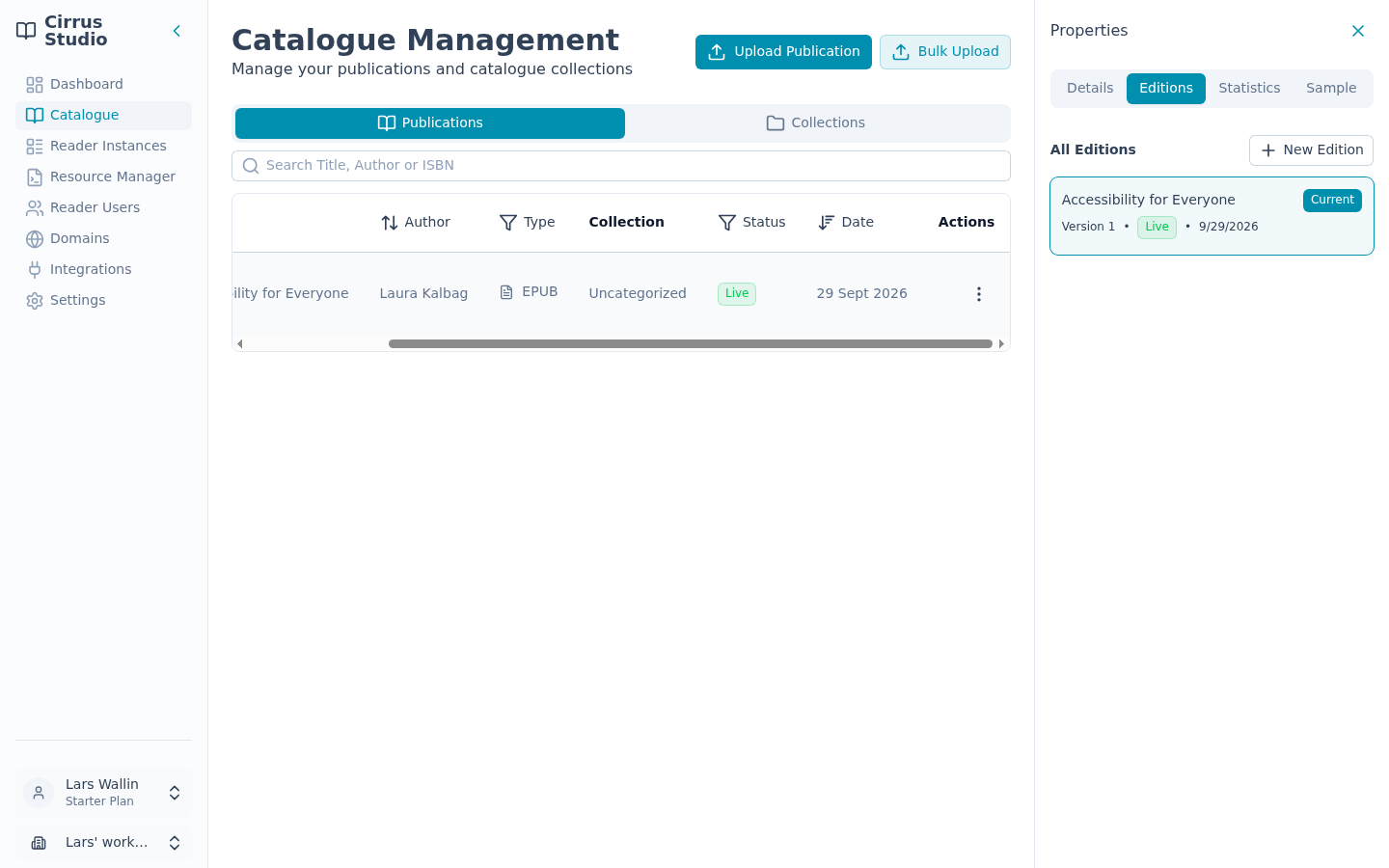
To add a new edition:
- Open the publication's Properties panel and click the Editions tab.
- Click New Edition. The Add new Edition dialog opens. It has the same fields as the upload form.
- Choose the new file, check the details and click Add New Edition.
The new edition becomes the Current edition automatically.
To go back to an earlier edition: on the Editions tab, find the edition under All Editions and click Set as Current. This takes effect immediately. Each edition card shows its version number, status and date.
7.10 Reading statistics
The Statistics tab of the Properties panel shows how one publication is being read.
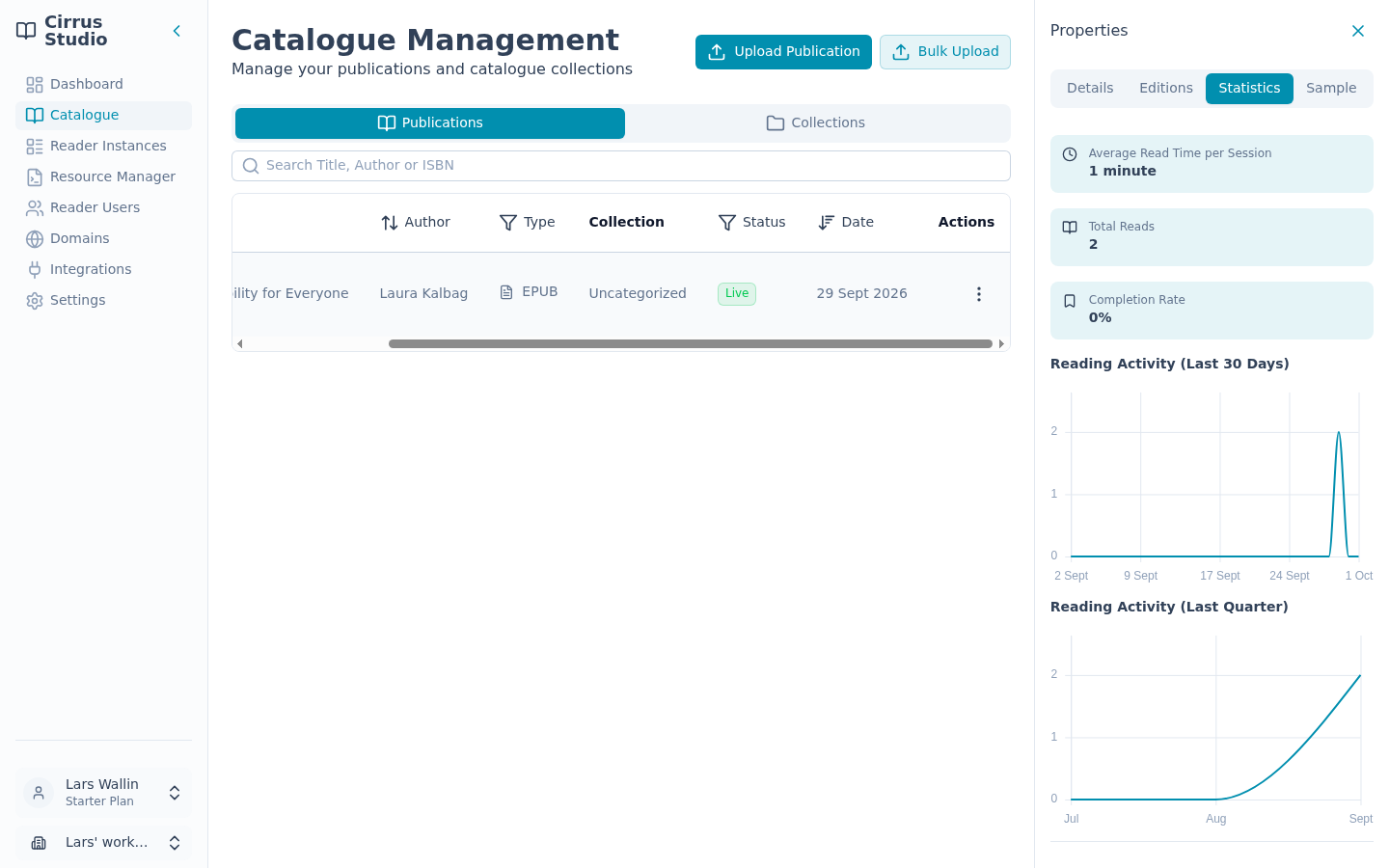
- Average Read Time per Session: how long a typical reading session lasts.
- Total Reads: how many times it has been opened.
- Completion Rate: the share of finished reading sessions that reached the end of the publication.
- Reading Activity (Last 30 Days): a day-by-day chart.
- Reading Activity (Last Quarter): a month-by-month chart for the previous full calendar quarter (for example, in October it shows July to September).
7.11 Choose a sample
A sample is the part of a publication that a sample instance is allowed to show, for example, the first two chapters.
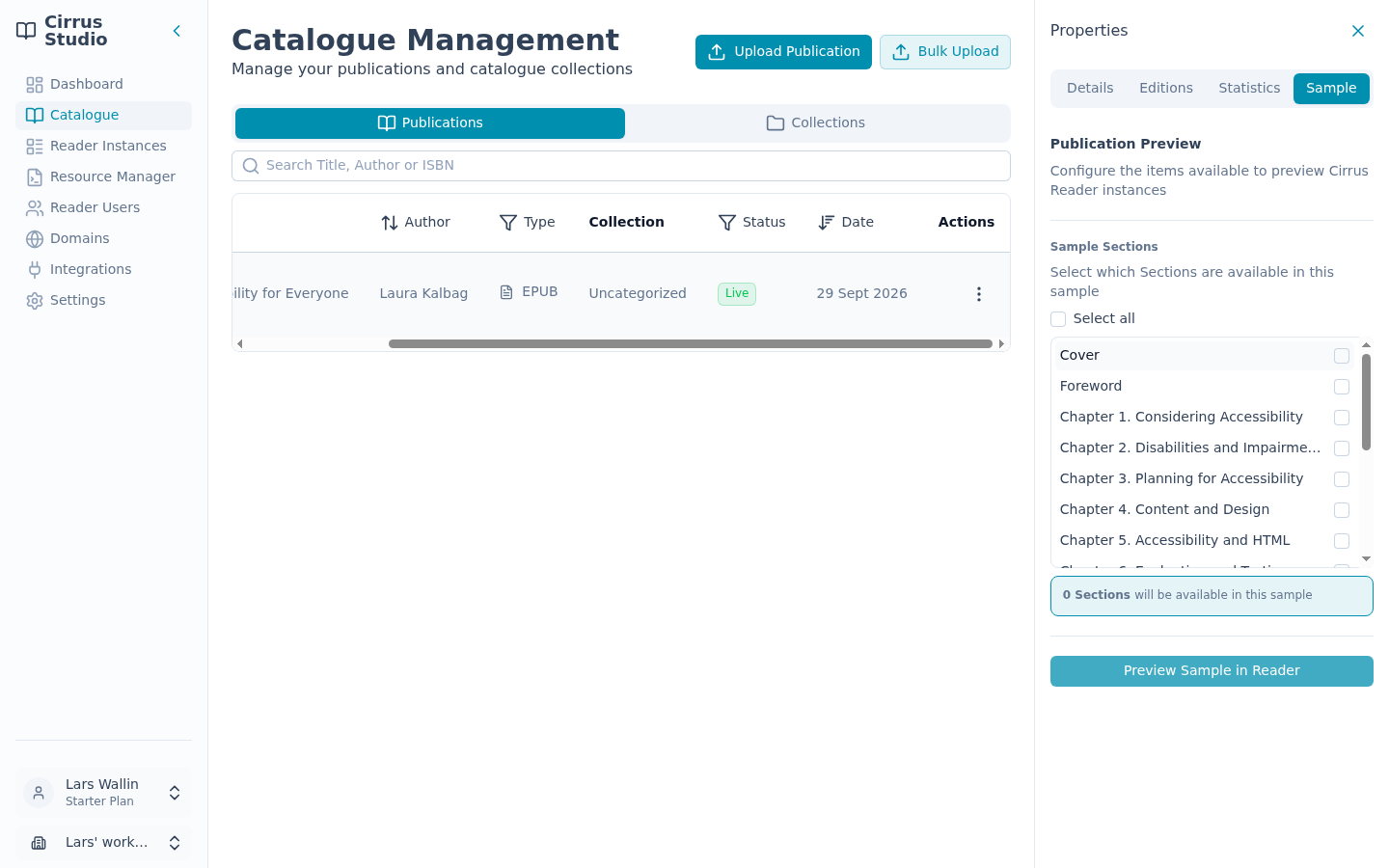
- Open the publication's Properties panel and click the Sample tab.
- Under Sample Sections (or Sample Pages, for PDFs and fixed-layout EPUBs), tick the chapters or pages to include. The list comes from the publication's table of contents. Select all ticks everything (and then toggles to Select none).
- The counter underneath shows how many items will be included, for example, "3 Sections will be available in this sample".
- Click Save Publication Data.
To check the result, click Preview Sample in Reader. This button only works when you have ticked some, but not all, items. It also saves all your unsaved changes before opening the preview.
Note: Samples only apply to Reader Instances that have Is Sample Instance turned on. Normal Reader Instances always show the whole publication. See Set up sample-only reading.
7.12 Choose the preview publication
When you design a Reader Instance, Cirrus Reader Studio shows a live preview using one of your publications, the preview publication.
- In the Catalogue, open the ⋮ menu of the publication you want to use. We recommend picking one that shows off your design well.
- Choose Use for Reading Instance Previews.
The publication now has the label Used for Reading Instance Previews next to its title. Only one publication can have this label at a time.
7.13 Copy the ID, download or delete a publication
- Copy the ID: ⋮ → Copy Publication Id, or use the copy button next to Publication Id on the Details tab.
- Download the file: ⋮ → Download.
- Delete one publication: ⋮ → Delete, then click Yes to confirm "Are you sure you want to delete this publication?". Readers immediately lose access to it.
- Delete several publications: tick the box at the start of each row, then click Delete above the list. (Only publications that have finished processing can be ticked.)
7.14 Your publication limit
Each plan has a strict maximum number of publications (see Plans). When your workspace reaches it, you cannot upload any more publications until an admin upgrades to a bigger plan, or deletes existing publications.